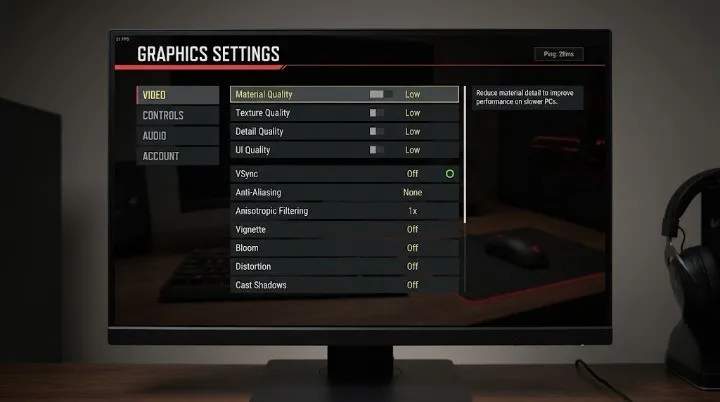
BGMI FPS & Graphics Settings Guide – How to Get Smoother Gameplay in 2026
Good graphics can make BGMI look better, but there is not much benefit to using high graphics if your game starts experiencing frame drops, stuttering, or heating during a match.
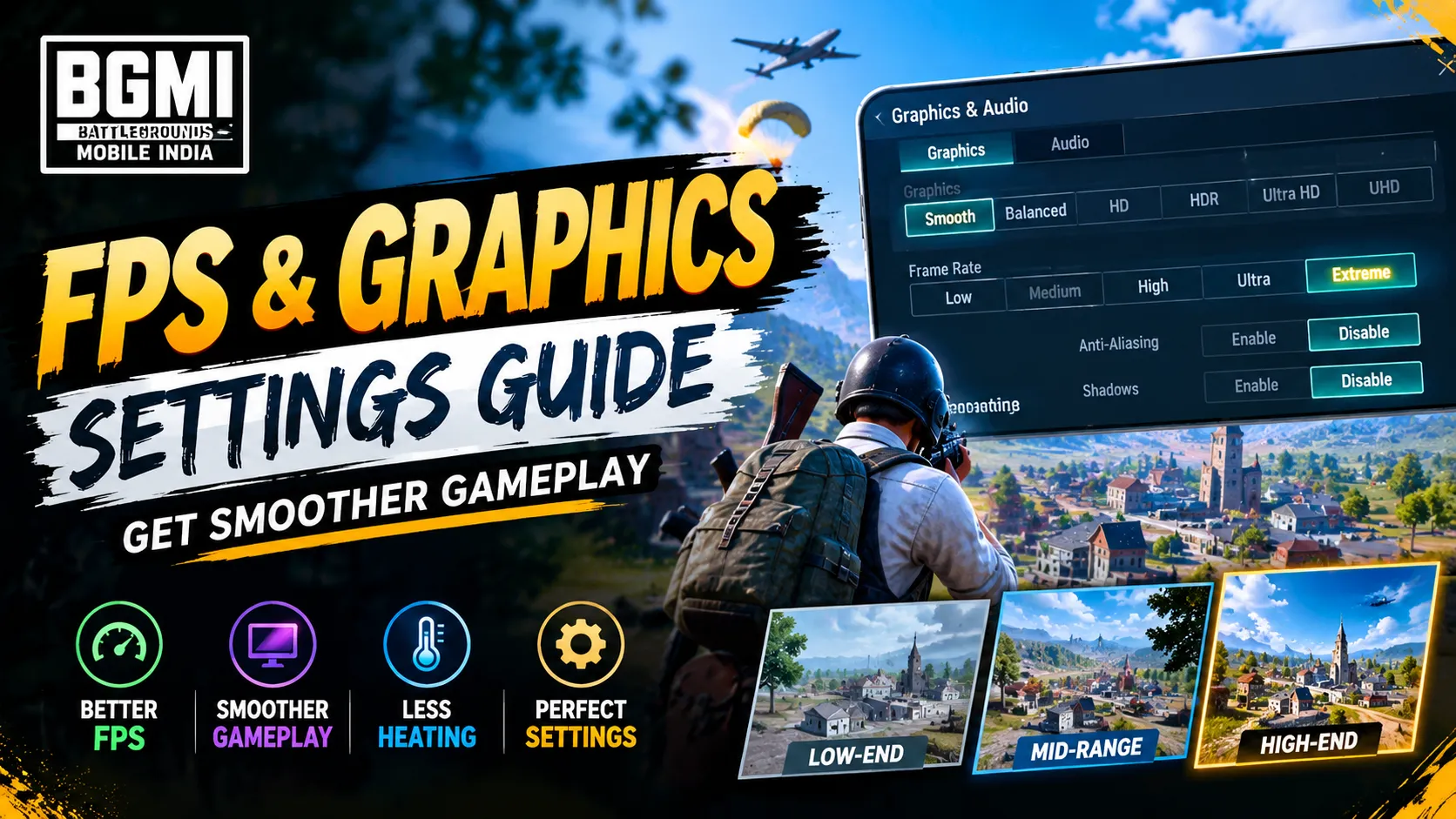
The main goal of a smoother BGMI experience should be stable performance rather than maximum graphics quality. When the game maintains a consistent FPS, controls can feel more responsive and camera movement can appear smoother.
In this guide, we’ll explain BGMI’s graphics and frame-rate settings in simple terms, including what to choose for lower-end, mid-range, and high-end phones.
Why FPS Matters in BGMI
FPS stands for Frames Per Second. In simple terms, it tells you how many frames the game displays every second.
For example:
| FPS | Gameplay Feel |
|---|---|
| 30 FPS | Playable, but movement may feel less smooth |
| 40 FPS | Smoother than 30 FPS |
| 60 FPS | Generally smoother and more responsive |
| 90 FPS | Even smoother if your device supports it |
| 120 FPS | Very smooth on supported hardware |
However, one important point is that higher FPS is not always better if your phone cannot maintain it consistently. A stable 60 FPS can feel better than an unstable 90 or 120 FPS with frequent drops.
A stable lower frame rate can feel better than selecting a higher option that repeatedly drops during gameplay. Recent BGMI performance guides make the same distinction between peak FPS and stable FPS.
The Best Starting Point: Smooth Graphics
If your priority is performance, Smooth graphics is usually the logical place to start.
Lower graphics quality reduces the amount of visual work the device has to process. Current BGMI settings guides commonly recommend Smooth when the goal is smoother performance rather than maximum visual quality.
That doesn’t mean Smooth is mandatory for every phone.
If you have a powerful device and prefer better visual quality, you can experiment with higher graphics. The important thing is to watch how the game actually performs during a real match.
A simple rule
If graphics look good but FPS keeps dropping, lower the graphics quality first.
Choose the Highest Stable FPS Your Phone Supports
After choosing your graphics quality, check the available frame-rate options.
The key word here is stable.
Don’t select an FPS option simply because it is the biggest number in the menu.
For example, if your phone can maintain 60 FPS consistently but struggles to maintain a higher option, 60 FPS may provide a better overall experience.
BGMI’s official help documentation also confirms that 90 FPS and 120 FPS are only available on supported devices, with the relevant option appearing in the game’s graphics settings.
What to do
Go to:
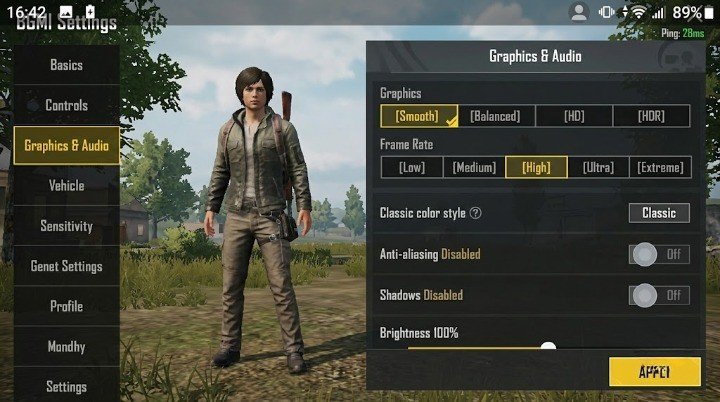
Settings → Graphics & Audio → Graphics
Then check the frame-rate options available on your device.
Choose the highest option that your phone can actually maintain consistently.
BGMI Graphics Settings for Different Devices
There isn’t one configuration that works perfectly for every smartphone.
Instead, think about your device in three broad categories.
Lower-End Phones
For a lower-end device, performance should generally come first.
A sensible starting point is:
| Setting | Starting Choice |
|---|---|
| Graphics | Smooth |
| Frame Rate | Highest stable option |
| Anti-Aliasing | Off |
| Shadows | Off, if available |
| Adaptive/Auto Graphics | Off, if available |
These settings reduce the amount of graphical work the device has to handle. Recent guides similarly recommend Smooth graphics and disabling extra visual effects when performance is the priority.
Mid-Range Phones
Mid-range devices have more flexibility.
You can start with:
- Smooth graphics
- Highest stable FPS
- Anti-Aliasing off if you are prioritizing performance
- Extra visual effects kept low or disabled if they cause drops
Then test the game during an actual match rather than judging performance only from the lobby.
Higher-End Phones
A powerful phone gives you more room to experiment.
You can try higher graphics quality if you care about visual detail, while keeping a frame-rate option that the hardware can sustain.
If your priority is competitive-style smoothness, you may still prefer a lower graphics preset with a higher stable FPS.
Should You Use 90 FPS or 120 FPS?
Only if your device and BGMI version support the option.
BGMI’s official help centre specifically states that 90 FPS requires the 90 FPS option to be available in Graphics Settings. Its 120 FPS guide similarly says the Ultra Extreme option needs to be available for 120 FPS.
So don’t follow guides claiming that every phone can simply unlock 90 or 120 FPS through a setting.
Your hardware and the game’s supported configuration matter.
Anti-Aliasing: Keep It On or Off?
Anti-aliasing is designed to make certain edges appear smoother.
The trade-off is that additional visual processing can increase the workload on your device.
If your main goal is smoother gameplay, turning Anti-Aliasing off is a reasonable setting to test. Multiple BGMI performance guides recommend disabling it when prioritizing FPS.
However, don’t assume the difference will be identical on every phone.
Test it on your own device.
What About Shadows?
Shadows can make the game environment look better, but they also require additional graphical processing.
If your phone struggles with performance, disabling shadows—where the option is available—can be worth trying.
The idea is simple:
Keep the visual settings that you actually need and remove the ones that are costing performance without adding much value to your gameplay.
Don’t Ignore Heating
One of the biggest reasons performance can change during a long session is heat.
A phone may perform well during the first few minutes and then become noticeably warmer during an extended session.
If performance becomes worse as the phone heats up, changing graphics settings may help, but the underlying issue is still thermal load.
A few simple habits can help:
- Avoid playing while the phone is already very hot.
- Remove a thick case if it noticeably traps heat.
- Don’t keep unnecessary apps running in the background.
- Give the phone a break between long sessions.
- Avoid demanding graphics settings if your device struggles with heat.
The goal isn’t to make your phone run cold. It’s to avoid unnecessary heat buildup.
Close Background Apps Before Playing
Background applications can use memory and processing resources.
Before starting a long BGMI session, close apps that you don’t need.
This is especially useful on devices with limited memory.
Recent BGMI performance guides also recommend closing background apps as part of basic performance optimization.
You don’t need a complicated “RAM booster” application.
Just keeping the phone’s background workload under control is a sensible starting point.
Keep Enough Free Storage
Storage space isn’t the same thing as RAM, but a phone that is nearly full can become harder to manage overall.
Try to keep reasonable free storage available by removing:
- Unused apps
- Old videos
- Duplicate screenshots
- Downloads you no longer need
- Large files you have already backed up
This won’t magically increase FPS, but keeping your phone in a healthy state can make general device maintenance easier.
Don’t Confuse Ping With FPS
This is an important distinction.
FPS = how smoothly the game is being rendered.
Ping = how quickly your device communicates with the game server.
So if your FPS is stable but your ping suddenly becomes high, changing graphics settings isn’t necessarily going to fix the problem.
Likewise, good ping doesn’t automatically mean your game will have stable FPS.
If you’re experiencing network issues, look at your connection separately from your graphics settings.
Why FPS Drops During Intense Moments
You may notice that BGMI feels smooth while you’re running around an empty area but becomes less consistent when there is much more happening on screen.
That can happen because the device has more work to process.
Things such as:
- More players nearby
- More visual effects
- More objects on screen
- Larger areas being rendered
- Additional animations
can increase the workload.
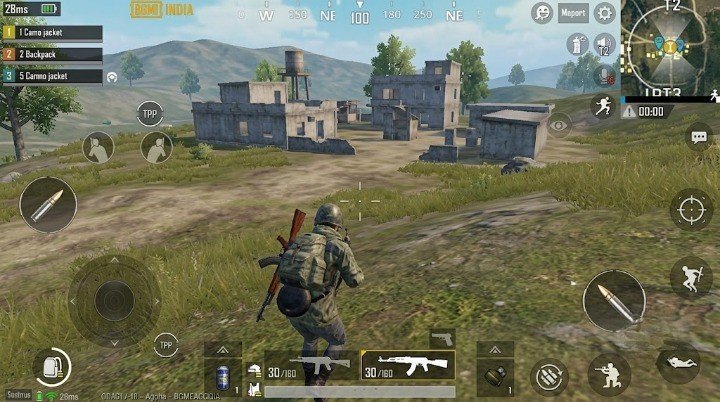
That’s why testing your settings during an actual match is more useful than testing only inside the lobby.
A Simple BGMI Performance Setup
If you don’t want to spend an hour experimenting with every option, start with this approach:
Graphics: Smooth
Frame Rate: Highest stable option available
Anti-Aliasing: Off
Shadows: Off if available and performance is a priority
Background Apps: Close unnecessary apps
Device: Keep reasonably cool
These aren’t universal “magic settings.” They’re simply a sensible starting point for players who care more about smooth performance than maximum visual quality. Current guides broadly recommend the same performance-first approach.
How to Test Your Settings Properly
Don’t change your settings and immediately decide whether they’re perfect.
Use a simple testing process.
Test 1: Training Area
Move around and check whether the camera feels smooth.
Test 2: Longer Session
Play for enough time to see whether performance changes as the phone heats up.
Test 3: Real Match
Play an actual match because real matches place a different workload on the device.
Test 4: Compare
If you changed multiple settings, it’s difficult to know which one helped.
Change one major setting at a time and compare.
Common BGMI Graphics Mistakes
Choosing Graphics Over Stability
High-quality graphics may look impressive, but if they cause repeated frame drops, they aren’t helping your gameplay.
Selecting FPS Your Phone Can’t Maintain
Seeing a higher FPS option doesn’t mean your phone will hold that frame rate consistently.
Copying Another Phone’s Settings
A setup that works on a flagship phone may not make sense on a budget device.
Using Third-Party “FPS Unlockers”
Be careful with third-party applications that claim to unlock unsupported graphics or FPS options.
If your device doesn’t officially support a particular option, changing game files or using unofficial tools isn’t something you should rely on.
Ignoring Heat
If your game starts smoothly but becomes worse after a long session, heat may be part of the problem.
Frequently Asked Questions
What are the best graphics settings for BGMI? +
For a performance-focused setup, Smooth graphics with the highest stable FPS supported by your device is a good starting point. You can then adjust other visual options based on performance.
Is 90 FPS available on every BGMI phone? +
No. BGMI’s official guidance says 90 FPS is available only when the supported option appears for the device.
Can every phone run BGMI at 120 FPS? +
No. BGMI’s official 120 FPS guide states that the Ultra Extreme option must be available under Graphics Settings for 120 FPS to be enabled.
Does Smooth graphics reduce lag? +
Smooth graphics can reduce the graphical workload compared with higher-quality presets, which can help some devices maintain more stable performance. The actual improvement depends on the phone.
Should I turn Anti-Aliasing off? +
If performance is your priority, turning Anti-Aliasing off is worth testing. It can reduce some graphical processing, although the effect varies by device.
Why does BGMI start lagging after playing for a long time? +
Heat can be one factor. As the device becomes warmer during a long session, performance can change. Lowering graphical load and allowing the device to cool can help.
Does higher FPS improve BGMI gameplay? +
Higher FPS can make movement and animation appear smoother, but only when the device can maintain that frame rate properly. A stable lower FPS can be preferable to a higher setting with frequent drops.
Does changing graphics settings reduce ping? +
No. Graphics settings primarily affect rendering and device performance. Ping is related to your network connection and server communication.
Final Thoughts
The best BGMI graphics settings aren’t necessarily the ones that make the game look the most detailed.
For smoother gameplay, the better approach is to find a balance your phone can maintain consistently.
Start with Smooth graphics, choose the highest stable FPS your device officially supports, and reduce extra visual effects if they’re putting unnecessary load on the phone. BGMI’s own support documentation confirms that higher FPS modes such as 90 and 120 FPS depend on device support.
Most importantly, don’t judge your setup from one short match. Test it over a longer session and see how your device actually behaves.
A stable setup that feels consistent is much more useful than chasing a bigger FPS number.
Related Articles: