Best VALORANT FPS Settings for Low-End PC
Looking for the best Valorant FPS settings for low-end PC? In this complete guide, you’ll find the exact settings that can help you get better FPS and smoother gameplay even on a weak PC.
If VALORANT feels laggy, stutters during fights, or your FPS keeps dropping on a low-end PC, the right settings can make the game noticeably smoother.
You don’t necessarily need a powerful gaming PC to play VALORANT. Riot currently lists hardware capable of around 30 FPS at minimum, 60 FPS at recommended specifications, and 144+ FPS on its high-end specification tier.
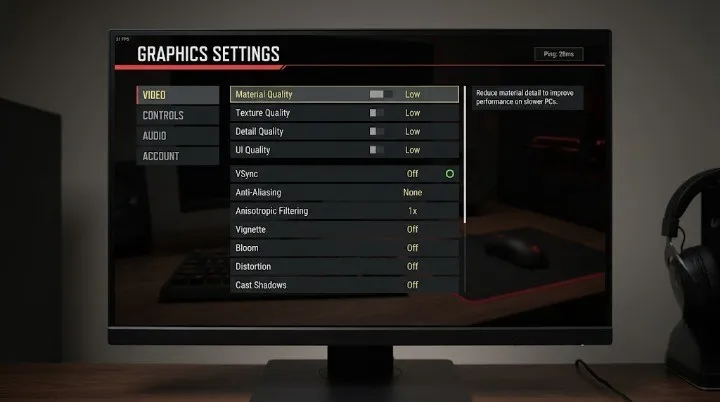
In this guide, we’ll cover the best VALORANT FPS settings for low-end PCs, including graphics quality, resolution, VSync, performance stats, and a few Windows-side changes that can help reduce unnecessary load.
Best VALORANT FPS Settings for Low-End PC
These are the best Valorant FPS settings for low-end PC…
For maximum performance, start with this setup:
| VALORANT Setting | Recommended Setting |
|---|---|
| Display Mode | Fullscreen |
| Resolution | 1280×720 or 1600×900 |
| Material Quality | Low |
| Texture Quality | Low |
| Detail Quality | Low |
| UI Quality | Low |
| Vignette | Off |
| VSync | Off |
| Anti-Aliasing | None |
| Anisotropic Filtering | 1x |
| Improve Clarity | Off |
| Experimental Sharpening | Off |
| Bloom | Off |
| Distortion | Off |
| Cast Shadows | Off |
| Multithreaded Rendering | On, if available |
Riot’s own troubleshooting guidance specifically identifies Material, Texture, Detail, and UI Quality as useful settings to lower when dealing with low client FPS, and also suggests disabling Improve Clarity, Experimental Sharpening, Bloom, Distortion, and Cast Shadows.
1. Use Fullscreen Mode
For a low-end PC, start with:
Fullscreen keeps the game focused on the display rather than treating it like a normal desktop window.
If you are currently playing in Windowed or Windowed Fullscreen and experiencing inconsistent performance, testing exclusive Fullscreen is worthwhile.
2. Lower Your Resolution
Resolution has a direct effect on how many pixels your GPU needs to render.
If your PC struggles at 1920×1080, try:
or, for a larger performance reduction:
You may notice a softer image, but the lower resolution can reduce GPU workload.
Recommended starting points
Don’t immediately lower your resolution if your FPS is already stable. Try the graphics settings first and only reduce resolution when you actually need additional performance.
3. Set Material Quality to Low
Material quality controls visual detail applied to materials throughout the game.
For an FPS-focused setup, keeping this on Low removes unnecessary graphical workload.
This is also one of the graphics settings Riot specifically recommends adjusting when troubleshooting low client FPS.
4. Set Texture Quality to Low
Textures mainly affect how detailed surfaces appear.
On a low-end system, keeping Texture Quality low can help reduce GPU and VRAM usage.
If your PC has more VRAM and your FPS is already stable, you can experiment with Medium later.
5. Set Detail Quality to Low
This is another setting worth lowering when optimizing VALORANT for an older PC.
Lower Detail Quality reduces some environmental visual detail while keeping the core gameplay intact.
For maximum FPS, Low is the easiest starting point.
6. Set UI Quality to Low
UI Quality affects the visual quality of interface elements.
It isn’t necessarily the biggest FPS setting, but Riot includes UI Quality among the settings worth lowering when troubleshooting low client FPS.
For a maximum-performance preset, keep it on Low.
7. Turn VSync Off
VSync synchronizes rendered frames with your display’s refresh cycle.
For an FPS-focused setup, turning it off allows the game to render frames without that synchronization limit.
If you experience noticeable screen tearing, you can test VSync again and decide which experience you prefer.
8. Turn Anti-Aliasing Off
Anti-aliasing makes edges appear smoother, but it also adds graphical work.
For a low-end PC:
Anti-Aliasing → None
This is an easy setting to sacrifice when your priority is performance.
9. Set Anisotropic Filtering to 1x
Higher filtering levels can make textures look better at angles, but they’re not essential for an FPS-focused setup.
Use:
1x
If your system has plenty of performance later, you can experiment with increasing it.
10. Disable Vignette
Vignette adds a visual effect around the edges of the screen.
It provides little gameplay benefit, so keeping it disabled makes sense for a performance-focused configuration.
11. Turn Off Improve Clarity
Improve Clarity changes how the game’s visuals are processed.
Riot includes disabling Improve Clarity among its troubleshooting suggestions for low client FPS.
If you’re chasing every bit of performance on a low-end machine, leave it Off.
12. Disable Experimental Sharpening
This is another optional visual effect that can be removed when optimizing the game.
For a simple low-end preset:
Experimental Sharpening → Off
13. Turn Bloom Off
Bloom creates additional lighting effects around bright objects.
It isn’t necessary for competitive gameplay, so:
Bloom → Off
Riot also lists Bloom among the effects players can disable when troubleshooting low client FPS.
14. Turn Distortion Off
Distortion adds additional visual processing to certain effects.
For maximum performance:
Distortion → Off
This is another setting Riot specifically mentions in its low-FPS troubleshooting guidance.
15. Disable Cast Shadows
Shadows can require additional rendering work, especially during visually busy situations.
If your PC is struggling:
Cast Shadows → Off
This is particularly useful for a competitive FPS setup where consistent performance matters more than extra visual effects.
Best VALORANT Settings for 60 FPS
If you’re aiming for a stable 60 FPS rather than maximum possible FPS, try:
| Setting | 60 FPS Setup |
|---|---|
| Resolution | 1600×900 / 1920×1080 |
| Material Quality | Low |
| Texture Quality | Low |
| Detail Quality | Low |
| UI Quality | Low |
| VSync | Off |
| Anti-Aliasing | None |
| Anisotropic Filtering | 1x |
| Vignette | Off |
| Improve Clarity | Off |
| Bloom | Off |
| Distortion | Off |
| Cast Shadows | Off |
If your FPS remains comfortably above 60, gradually increase Texture Quality or resolution.
Best VALORANT Settings for 100+ FPS
For a somewhat stronger PC that still isn’t high-end, try:
| Setting | Recommended |
|---|---|
| Resolution | 1920×1080 |
| Material Quality | Low |
| Texture Quality | Low/Medium |
| Detail Quality | Low |
| UI Quality | Low/Medium |
| VSync | Off |
| Anti-Aliasing | None |
| Anisotropic Filtering | 1x–2x |
| Vignette | Off |
| Improve Clarity | Off |
| Bloom | Off |
| Distortion | Off |
| Cast Shadows | Off |
The exact FPS will depend heavily on your CPU/GPU combination.
How to Check What Is Causing Your FPS Drops
Don’t just guess which component is causing the problem.
VALORANT includes performance statistics under:
Riot recommends using these graphs to determine whether your system is more likely to be CPU-bound or GPU-bound.
If your GPU is the bottleneck, lowering resolution and graphical quality can help.
If your CPU is the bottleneck, simply lowering resolution may not produce a major improvement.
Riot has also explained that lower-spec systems are more likely to be GPU-bound, while mid-to-high-spec systems can become CPU-bound.
Close Background Apps
Before launching VALORANT, close unnecessary applications that are using CPU, RAM, or GPU resources.
For example, check whether you actually need:
- Browser tabs
- Game launchers
- Video editors
- Screen recording software
- Unused background applications
Riot specifically recommends closing other applications when troubleshooting low client FPS.
Frequently Asked Questions
What are the best VALORANT settings for a low-end PC?
Use low settings for Material Quality, Texture Quality, Detail Quality, and UI Quality. Turn VSync, Bloom, Distortion, Vignette, Improve Clarity, and Cast Shadows off. Use None for Anti-Aliasing and 1x Anisotropic Filtering for a performance-focused setup.
What resolution is best for VALORANT on a low-end PC?
1600×900 is a good starting point for many low-end PCs. If your system struggles to maintain stable FPS, dropping to 1280×720 can reduce the rendering workload further.
Should VSync be turned off in VALORANT?
For a performance-focused setup, VSync can be turned off. This can reduce the additional synchronization overhead, although the best choice can depend on your display and whether screen tearing bothers you.
Does lowering VALORANT graphics increase FPS?
Lowering graphics settings can reduce the workload on your GPU and may improve FPS, especially when the GPU is the performance bottleneck. The actual improvement depends on your PC hardware.
Should Anti-Aliasing be set to None for more FPS?
None is a practical choice for a maximum-performance setup because it avoids the additional rendering work associated with anti-aliasing. Edges may look less smooth, but the setting prioritizes performance.
What should I do if VALORANT FPS is still low?
Check your background applications, Windows power settings, graphics drivers, temperatures, and available system resources. You can also lower the resolution further and use the in-game statistics to identify whether your CPU or GPU is limiting performance.
How can I check FPS in VALORANT?
Open VALORANT and go to Settings → Video → Stats. From there, you can enable relevant performance statistics to monitor your FPS while playing.
Is 60 FPS enough for playing VALORANT?
60 FPS can provide a playable experience in VALORANT. If your hardware can maintain a higher and stable frame rate, you may notice smoother motion, particularly when using a high-refresh-rate display.