Free Fire settings for high FPS can help make gameplay smoother, reduce unnecessary visual load, and improve responsiveness, especially on budget and mid-range phones.
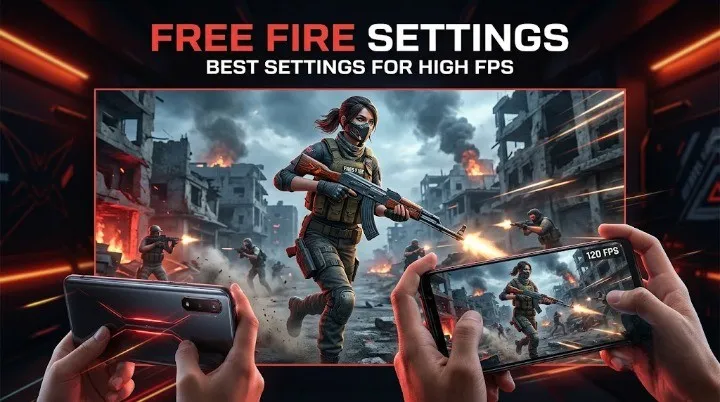
Free Fire has continued to add performance-related options. Garena’s recent updates include High FPS Mode and a Frame Rate Enhancement feature, so checking your in-game FPS options is important before changing other settings.
Best Free Fire Settings for High FPS
For a performance-focused setup, start with these settings:
| Setting | Recommended |
|---|---|
| Graphics | Smooth |
| High FPS | High / Highest Available |
| Frame Rate Enhancement | On, if available |
| High Resolution | Off |
| Shadow | Off, if available |
| Auto Scale | Off, if available |
The exact options can vary by device and Free Fire version, so use the highest stable FPS option your phone supports rather than forcing an option that causes overheating or instability.
1. Set Graphics to Smooth
If your main goal is higher FPS in Free Fire, use Smooth graphics when available.
Lower graphics quality reduces the amount of visual work your device needs to handle. Garena has historically provided lower-graphics options specifically to improve performance on devices that struggle with higher settings.
2. Turn On High FPS
Open Free Fire’s settings and look for the High FPS or frame-rate option.
Set it to the highest option that your device supports consistently.
A higher FPS setting can make camera movement and controls feel smoother, but the actual result depends on your phone’s hardware, temperature and game version.
3. Enable Frame Rate Enhancement
If your version of Free Fire shows Frame Rate Enhancement or a similar FPS-boost option, check whether it is available under the High FPS settings.
Garena introduced an Experimental Frame Rate Boost option in High FPS Mode in recent updates.
If enabling it causes unusual heat, instability or inconsistent performance, return to the previous setting.
4. Turn Off Unnecessary Visual Effects
If your device struggles to maintain FPS, reduce or disable extra visual effects where the game provides those options.
Prioritize:
- Lower graphics quality
- Higher stable FPS
- Reduced shadows
- Reduced extra visual effects
- No unnecessary high-resolution options
The goal is not simply to select every option labelled “High.” Stable FPS is more useful than constantly changing between high and low frame rates.
Best Free Fire Settings for Low-End Phones
If you’re playing Free Fire on a budget phone, try:
If the phone becomes hot or FPS starts dropping during longer matches, lower the graphics settings first.
Want to calculate your Free Fire stats and requirements?
Use Free Fire Calculator →Best Free Fire Settings for 60 FPS
If your phone can maintain around 60 FPS, use a performance-focused setup:
Free Fire’s available FPS options can differ between devices, so don’t assume every phone will show the same choices.
How to Get More FPS in Free Fire
Your in-game settings are only part of the performance equation. You can also:
- Close unnecessary background apps before playing.
- Keep enough free storage available.
- Avoid playing while the phone is extremely hot.
- Use a stable internet connection to reduce connection-related problems.
- Keep Free Fire updated.
- Avoid unofficial modified game clients or tools.
Garena has also added performance and low-FPS recommendations in previous updates, including automatic recommendations when a low-FPS warning appears.
Why Is Free Fire FPS Dropping?
FPS can drop because of several factors, including:
- Device temperature
- Limited RAM
- Background apps
- High graphics settings
- Resource-heavy visual settings
- Device performance limitations
- Game updates or changes
- Thermal throttling during long sessions
If FPS is stable at the beginning but drops after playing for a while, heat can be an important factor to consider.
Free Fire High FPS Settings: Quick Setup
For a simple performance preset, use:
These settings are intended as a starting point. The best combination depends on your phone and the options currently available in your Free Fire version.
Final Thoughts
The easiest way to improve Free Fire FPS is to reduce unnecessary graphics load while keeping the highest stable frame-rate option available on your device.
Start with Smooth graphics + High FPS, enable Frame Rate Enhancement if your version provides it, and reduce additional visual effects if your FPS still drops. Garena’s current Free Fire updates continue to include performance-related changes, so it’s worth checking the game’s settings again after major updates.