Minecraft Vibrant Visuals: Features, Supported Devices & How to Enable It
Minecraft has always been known for its blocky graphics, but that does not mean its worlds cannot look more immersive. With Minecraft Vibrant Visuals, the official graphics mode for compatible Minecraft: Bedrock Edition devices, familiar landscapes can feel more atmospheric thanks to improved lighting, shadows, reflections, fog, and enhanced visual effects.
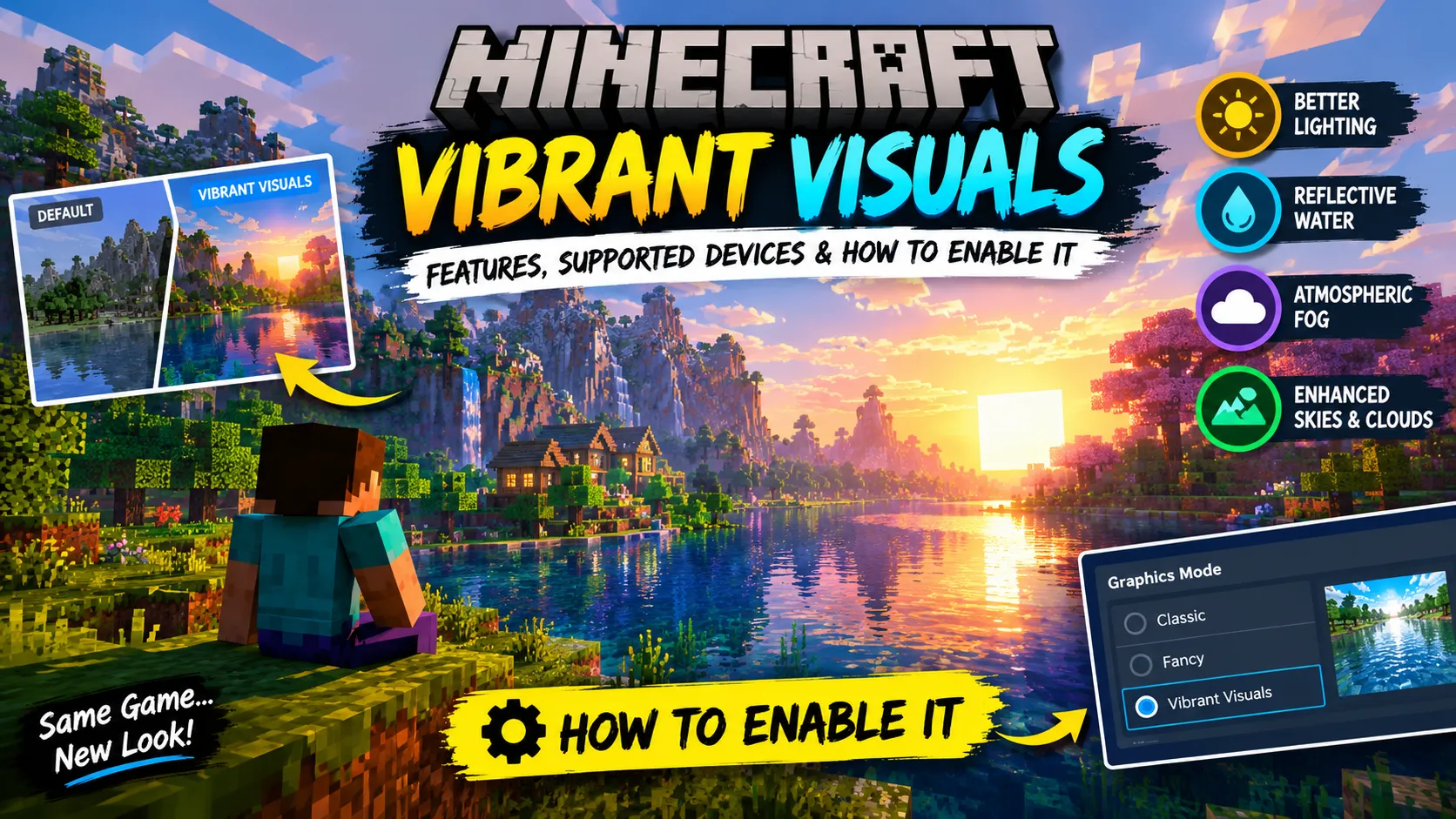
From sunlight shining through trees to reflections across lakes, Vibrant Visuals gives players another way to enjoy Minecraft without changing its core gameplay. Whether you enjoy survival adventures, creative building, exploring new biomes, or capturing beautiful screenshots, this graphics upgrade is worth learning about.
In this guide, we will explain what Minecraft Vibrant Visuals is, its main features, compatible devices, how to enable it, and what to do if it affects your performance.
What Is Minecraft Vibrant Visuals?
Minecraft Vibrant Visuals is an official graphics enhancement developed by Mojang for compatible devices running Minecraft: Bedrock Edition. It improves the game’s visual presentation through a modern rendering system and effects that make environments feel more detailed and atmospheric.
Unlike a traditional third-party shader, Vibrant Visuals is built into Minecraft as a graphics mode. You do not need to download a separate shader file to enable the official feature.
The upgrade focuses on how the world looks rather than how the game plays. Blocks, mobs, crafting recipes, survival mechanics, and other core gameplay systems remain part of the familiar Minecraft experience.
According to the official Minecraft Vibrant Visuals page, the feature is available on compatible Bedrock devices, with Java Edition development being handled separately.
Main Features of Minecraft Vibrant Visuals
Vibrant Visuals combines several graphical improvements. The exact experience can vary depending on your device, graphics settings, and the environment you are exploring.
1. Improved Lighting and Shadows
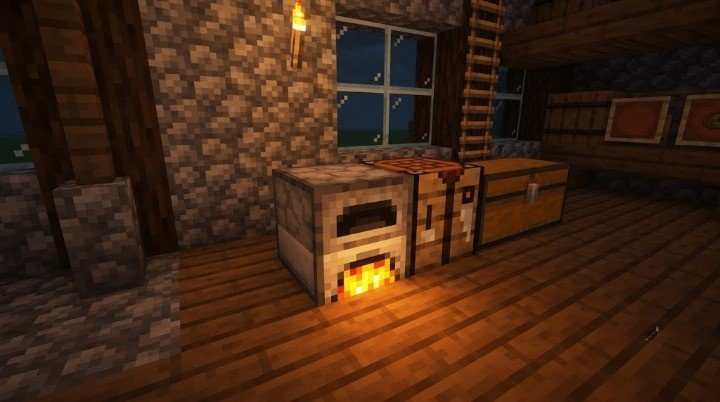
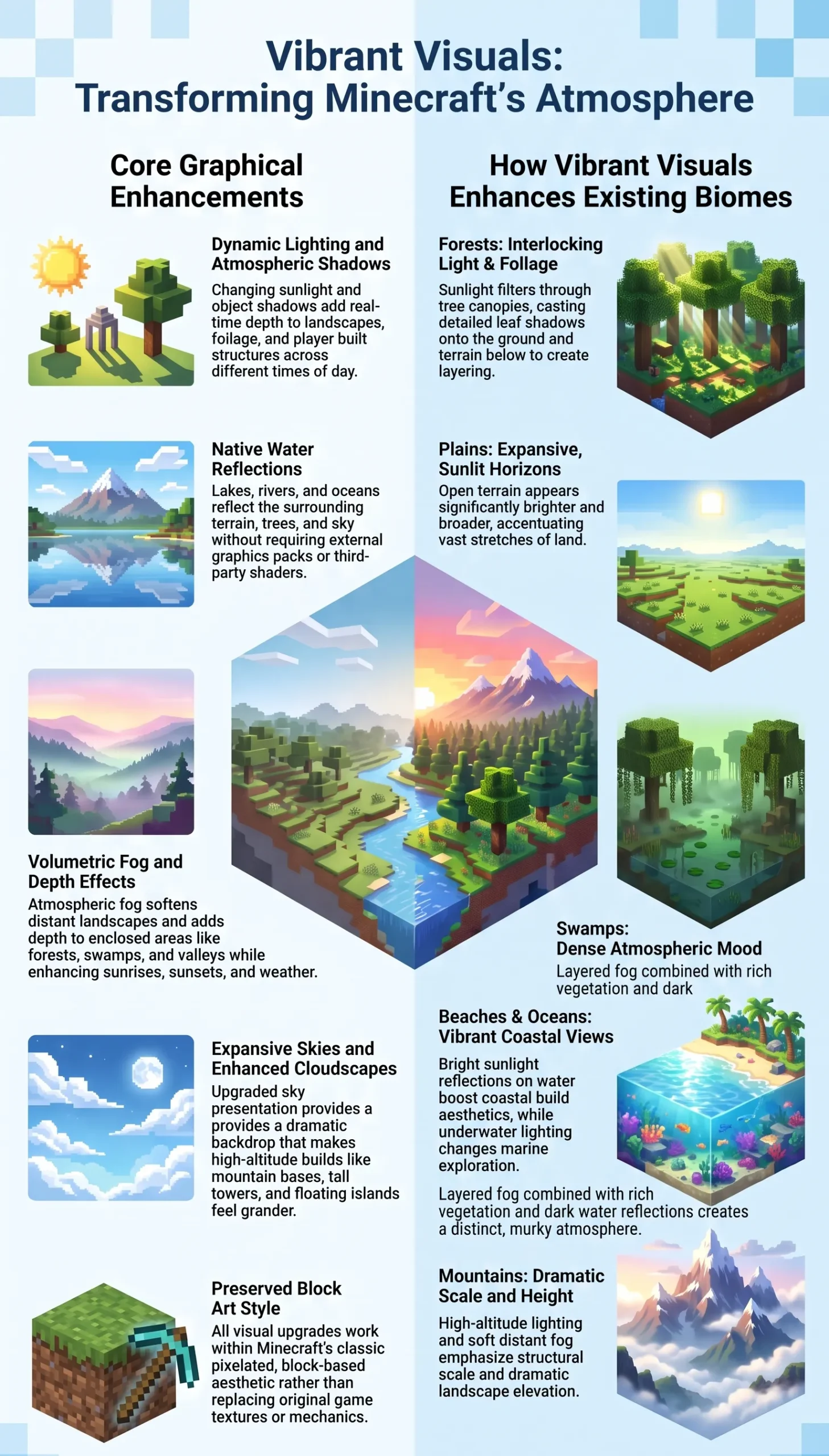
Lighting is one of the most noticeable parts of Vibrant Visuals. Sunlight and shadows help give landscapes more depth, making hills, forests, villages, and player-built structures feel more atmospheric.
When you build a house or castle, the changing light can create a different appearance throughout the day. Trees and other objects can also cast shadows that help define the environment.
This is particularly useful for players who enjoy building detailed bases, taking screenshots, or creating cinematic Minecraft videos.
2. Reflective Water
Water can look more visually interesting with reflections and improved lighting. Lakes, rivers, and oceans can reflect parts of the surrounding environment, giving coastal builds and waterfront villages a different atmosphere.
Imagine building a small wooden house beside a lake, with trees surrounding the shoreline and the sky reflected on the water. Vibrant Visuals can make scenes like these more immersive without requiring a separate graphics pack.
Water appearance can vary depending on the biome, lighting conditions, and graphics settings.
3. Volumetric Fog and Atmospheric Effects
Fog helps create depth in the Minecraft world. It can make distant terrain look softer and give certain environments a more atmospheric appearance.
These effects can be especially noticeable in forests, swamps, valleys, and other landscapes where the surroundings naturally create a sense of depth.
Atmospheric lighting can also make sunrise, sunset, and changing weather feel more immersive. Minecraft’s familiar block-based art style remains intact, but the environment can look more dynamic.
4. Enhanced Clouds and Skies
The sky is an important part of Minecraft’s visual identity. Vibrant Visuals improves the overall presentation of the sky and clouds, helping distant landscapes feel more expansive.
This is useful for players who build tall towers, mountain bases, bridges, or floating islands. A well-designed structure can look different depending on the sky, time of day, and surrounding lighting.
5. More Immersive Biomes
Vibrant Visuals does not introduce new biomes. Instead, it changes how existing environments are presented.
Different locations can benefit from its lighting and atmospheric effects:
- Forests: Tree shadows and sunlight can create more depth between the leaves and terrain.
- Plains: Open landscapes can feel brighter and more expansive.
- Swamps: Fog, vegetation, and water can create a distinctive atmosphere.
- Beaches: Water reflections and sunlight can improve the appearance of coastal builds.
- Mountains: Lighting and distant scenery can make elevated locations more impressive.
- Oceans: Reflections and underwater visuals can make exploration feel different.
The result depends on your settings and device, so not every biome or scene will look identical.
Minecraft Vibrant Visuals Supported Devices
Vibrant Visuals is designed for compatible Minecraft: Bedrock Edition devices. Simply having Bedrock Edition installed does not guarantee that the graphics mode will be available.
The official compatibility information includes the following platforms:
| Platform | Compatibility information |
|---|---|
| Windows PC | Requires Minecraft running with DirectX 12 and compatible hardware |
| Xbox Series X/S | Supported |
| Xbox One | Supported |
| PlayStation 4 | Supported |
| PlayStation 5 | Supported |
| Android | Requires a compatible graphics chipset |
| iPhone and iPad | Requires compatible Apple hardware |
Minecraft’s published minimum hardware guidance includes Android devices with Adreno 640, Mali-G68, Mali-G77, or Xclipse 530-class graphics or higher, and Apple devices with an A12 or M1 chip or higher, depending on the device. Windows PCs must run Minecraft using DirectX 12; older graphics hardware may still be incompatible.
These are compatibility guidelines rather than a guarantee of smooth performance at every setting.
For the latest information, check the official Minecraft Vibrant Visuals guide.
How to Enable Vibrant Visuals in Minecraft Bedrock
If your device supports the feature, enabling it is straightforward.
Step 1: Update Minecraft
Install the latest compatible version of Minecraft: Bedrock Edition available for your platform. Older versions may not include the current graphics mode or its latest improvements.
Step 2: Open Video Settings
Launch Minecraft and open Settings from the main menu. Navigate to the Video section.
If you are already playing in a world and cannot change the graphics mode, save and exit to the main menu before trying again.
Step 3: Select Graphics Mode
Find the Graphics Mode dropdown menu. If your device supports the feature, select Vibrant Visuals.
Depending on the platform and version, the available options may differ.
Step 4: Choose Your Visual Settings
Explore the Vibrant Visuals options and select the preset that works best for your device.
- Favor Visuals: Prioritizes the graphical experience on devices capable of handling the effects.
- Favor Performance: A better starting point if you notice slowdowns.
- Custom: Lets you adjust available visual options to find a balance.
Step 5: Load a World and Test It
Enter a world and explore a few different environments. Check how the graphics look near water, in forests, during sunset, and inside your base.
If the game feels slower than usual, return to the settings and try a more performance-focused configuration.
For additional instructions, visit the official Vibrant Visuals settings guide.
Does Vibrant Visuals Affect Minecraft Performance?
Yes, it can. Vibrant Visuals adds graphical work that may affect frame rates, temperature, battery usage, or overall smoothness depending on your hardware and settings.
A device that handles ordinary Minecraft graphics comfortably may behave differently when additional lighting and visual effects are enabled.
To get a smoother experience, try these tips:
- Select Favor Performance if the game starts slowing down.
- Close unnecessary applications before launching Minecraft.
- Keep Minecraft and your device’s software updated.
- Test the graphics mode in a smaller world before using it for long sessions.
- If performance remains poor, switch back to Fancy or Simple graphics.
Mobile players should pay attention to device temperature and battery use during longer sessions. There is no single setting that guarantees the same performance across every phone, tablet, console, and PC.
Vibrant Visuals vs Traditional Minecraft Graphics
Vibrant Visuals is intended to improve Minecraft’s visual presentation while preserving its familiar gameplay. Traditional graphics modes can be a better choice for players who prefer a simpler rendering experience or need to prioritize performance.
| Feature | Vibrant Visuals | Traditional graphics modes |
|---|---|---|
| Enhanced lighting effects | Yes | More limited |
| Improved atmospheric effects | Yes | More limited |
| Water reflections | Enhanced visual presentation | More limited |
| Hardware requirements | Higher on compatible devices | Often less demanding |
| Changes survival mechanics | No | No |
| Requires a separate shader download | No | No |
A third-party shader or resource pack is a separate product and may have its own compatibility requirements. Vibrant Visuals should not be confused with ray tracing or with a downloadable shader pack.
Is Vibrant Visuals Available on Minecraft Java Edition?
Vibrant Visuals was released for Bedrock Edition first. Mojang has also been working on bringing the graphics technology to Java Edition, but you should check the latest official announcements for its current availability and supported versions.
Do not assume that a Bedrock graphics tutorial or a Vibrant Visuals-compatible Marketplace item will work identically on Java Edition.
You can follow official updates through the Minecraft website.
Can You Use Vibrant Visuals in Existing Worlds?
Yes. On a compatible Bedrock device, Vibrant Visuals can be used with existing worlds, allowing you to revisit familiar builds with the enhanced graphics mode.
It does not change the core gameplay, so you can continue gathering resources, exploring caves, building houses, and playing survival as usual.
Minecraft also states that players can use Realms with friends who have Vibrant Visuals enabled or disabled, provided the usual platform and multiplayer requirements are met. Local split-screen multiplayer is not supported with Vibrant Visuals; the game switches to a simpler graphics mode when multiple players join locally.
Keep in mind that certain unsupported Marketplace worlds and texture packs can prevent the graphics mode from being selected. If this happens, test the setting with compatible content.
Why Is Vibrant Visuals Missing or Greyed Out?
If you cannot select Vibrant Visuals, several things may be responsible.
Your device may not be compatible. Check the official minimum hardware guidance for your platform.
Minecraft may need an update. Install the latest available version and reopen the game.
You may be changing settings inside an active world. Save and exit to the main menu, then open Video Settings again.
An incompatible world or texture pack may be active. Some content can disable the option. Test a new world without incompatible content to narrow down the cause.
Your graphics configuration may need updating. On Windows, check that Minecraft is running with DirectX 12 and that your graphics drivers are current.
For the most reliable troubleshooting steps, consult Minecraft Help.
Is Minecraft Vibrant Visuals Worth Using?
Vibrant Visuals is worth trying if you enjoy Minecraft’s environments, spend time building detailed structures, or want more atmospheric screenshots and gameplay footage.
Its main advantage is that it enhances the game’s appearance without turning the experience into a different game. You can still enjoy the familiar blocks, mobs, crafting, and exploration that make Minecraft recognizable.
However, the best choice depends on your hardware and personal preference. Players who prioritize smooth performance may prefer simpler graphics settings, while players with compatible hardware may enjoy the added lighting and visual depth.
Frequently Asked Questions
Is Minecraft Vibrant Visuals a shader?
No. Vibrant Visuals is an official graphics mode built into compatible versions of Minecraft: Bedrock Edition. It does not require a separate shader download.
Is Vibrant Visuals free?
The graphics mode is included with compatible Minecraft: Bedrock Edition versions. You do not need to purchase a separate Vibrant Visuals shader pack, although Minecraft itself and some Marketplace content may require payment.
Does Vibrant Visuals change gameplay?
No. It is a cosmetic graphics enhancement. It does not intentionally change survival mechanics, crafting, mobs, or the core gameplay.
Can I use Vibrant Visuals on Android?
Yes, if your Android device meets the compatibility requirements. Not every Android phone supports it, so check the graphics chipset requirements and the in-game Graphics Mode menu.
Can I use Vibrant Visuals on a low-end PC?
Only if the PC meets the compatibility requirements. Even a compatible system may struggle with some settings, so use Favor Performance or a simpler graphics mode if necessary.
Does Vibrant Visuals work with existing Minecraft worlds?
Yes, on compatible Bedrock devices. Some unsupported worlds or texture packs can disable the graphics mode.
Is Vibrant Visuals available for Java Edition?
Bedrock Edition received the feature first. Check official Minecraft announcements for the latest Java Edition development and availability information.
Final Verdict
Minecraft Vibrant Visuals is a major official graphics upgrade for compatible Bedrock Edition devices. Improved lighting, shadows, reflections, fog, and sky effects can make familiar Minecraft worlds feel more immersive without changing the core gameplay.
Before enabling it, make sure your device is compatible and choose graphics settings that suit your hardware. If you enjoy exploring, building, or capturing Minecraft screenshots, it is a worthwhile feature to try.
For more Minecraft guides, Bedrock add-ons, visual enhancements, and gaming tutorials, keep visiting BR GAMERS.
Official references: Minecraft Vibrant Visuals · Evolving Vibrant Visuals for Bedrock Edition · Vibrant Visuals Settings Help