How to Make a Minecraft Server for Free
Playing Minecraft with friends is much more fun when everyone can share the same survival world, build bases together, explore new biomes and work on large projects. The problem is that setting up a traditional Minecraft server can look complicated, especially if you have never worked with server files, Java or network settings before.
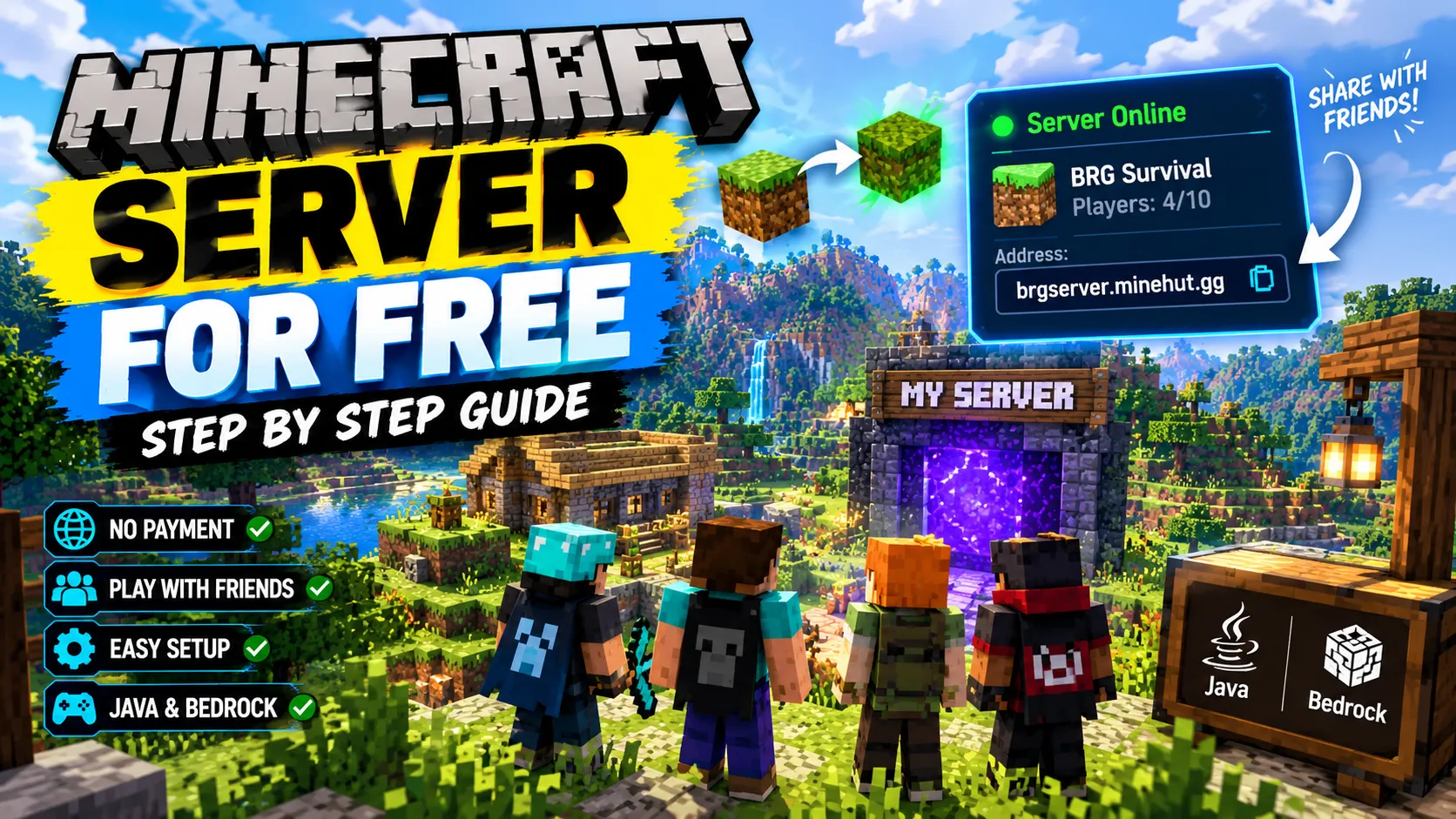
The good news is that you do not necessarily need to pay for a Minecraft server.
There are free hosting services that let you create a Minecraft server without buying your own server hardware or configuring port forwarding. For beginners, this is usually much easier than running the official server software on your own computer.
In this guide, we will explain how to make a Minecraft server for free, what you need before starting, how hosting works, how your friends can join, and what limitations you should expect from free hosting.
Can You Make a Minecraft Server for Free?
Yes. You can create and run a Minecraft server without paying for traditional server hosting.
One option is to use a free hosting platform such as Minehut. Its current service allows users to create free servers without requiring a credit card, and it provides browser-based server management instead of requiring you to host the server directly from your own PC.
Another option is to run Minecraft’s official server software yourself. Mojang provides the official Java Edition server software for free, but hosting it yourself requires a suitable computer, Java and additional network configuration.
For beginners, a free hosting platform is generally the simpler route.
What Do You Need?
Before creating your server, make sure you have:
- A legitimate Minecraft account
- Minecraft Java Edition or Bedrock Edition
- A computer or mobile device for managing the server
- A stable internet connection
- A free hosting account if you choose hosted server software
- Friends who own Minecraft and can connect to the server
You do not need to purchase a dedicated server computer if you use a hosted free-server service.
The Easiest Method: Use Free Minecraft Hosting
The simplest approach is to use a hosting platform that creates and runs the server for you.
Instead of installing the server software on your own PC, the hosting provider runs the server on its infrastructure. You control important settings through a web dashboard.
This can save you from dealing with:
- Java installation
- Port forwarding
- Router configuration
- Firewall configuration
- Server startup commands
- Keeping your own computer running
For example, Minehut currently offers free server creation with no required credit card or download, and server management is handled through its web dashboard.
Step 1: Choose Your Minecraft Edition
Before creating a server, determine which Minecraft edition you and your friends use.
There are two main versions:
Minecraft Java Edition
Java Edition is primarily used on Windows, macOS and Linux computers.
It has a large modding and plugin ecosystem and is commonly used for custom multiplayer servers.
Minecraft Bedrock Edition
Bedrock Edition is available on platforms including Windows, Android, iOS and consoles.
The exact server and crossplay experience can vary depending on the hosting provider.
This distinction is important because Java and Bedrock are not automatically compatible with every server.
Some hosting services now provide crossplay support. Minehut, for example, currently uses Geyser to allow supported Bedrock players to connect to its Java-based network.
Step 2: Create Your Free Hosting Account
Choose a reputable free Minecraft hosting provider and create an account.
For a beginner-friendly setup, Minehut currently allows users to create a free server through its website.
After creating your account, open the server creation area.
You will normally be asked to choose a server name.
Try to choose something simple and memorable.
For example:
BRG Survival SMP
or:
Friends Survival World
Avoid using personal information in your server name.
Step 3: Create the Server
Once you have selected the server name, create the server from the hosting dashboard.
The hosting platform will create the server environment for you.
Depending on the provider, you may see settings for:
- Server version
- Server type
- World
- Difficulty
- Game mode
- Player slots
- Plugins
- Server properties
Free plans can have resource and player limitations, so you should not expect the same performance as a paid dedicated server.
Minehut currently lists its free Starter server with 1 GB of RAM and 10 player slots, while paid upgrades provide additional resources.
Step 4: Choose Your Minecraft Version
Your server version should match the Minecraft version your group intends to use.
This is particularly important when playing with friends because incompatible versions can prevent players from joining.
For example, if your server is configured for a particular Java release, make sure your Minecraft launcher is using a compatible version.
If your hosting dashboard provides automatic version selection, choose the version you actually want your friends to play.
Do not randomly change the server version after creating a world without checking compatibility first.
Step 5: Start Your Minecraft Server
After configuring the basic settings, start the server from the hosting dashboard.
The hosting platform will initialize the server and prepare the world.
The first startup may take longer than later startups because the server needs to create or load its world.
Once the dashboard shows that the server is online, you can find its connection address.
That address is what your friends will use to join.
Step 6: Find Your Server Address
Your hosting provider should give your server a unique address.
For example, Minehut currently provides server addresses based on the server name, using the .minehut.gg format for direct Java connections.
Keep this address private enough that random people do not discover your server if you only want to play with friends.
Do not post your server address publicly unless you actually want strangers to join.
Step 7: Join Your Server on Java Edition
If you are playing Java Edition, open Minecraft and go to:
Multiplayer → Add Server
Enter the server address provided by your hosting service.
Save the server and select it from your multiplayer list.
If everything is configured correctly, Minecraft should connect to the server.
Minehut also provides a central lobby system where Java players can connect through mc.minehut.com and then access individual servers from there.
Step 8: Let Your Friends Join
Once your server is online, send the server address to your friends.
They should use the same Minecraft edition and a compatible version.
If your server supports crossplay, players using supported Bedrock devices may also be able to join.
Minehut currently supports Bedrock connections from supported mobile and Windows devices through its Bedrock network, with Geyser providing crossplay between supported Bedrock and Java players.
However, crossplay does not mean that every Java feature works perfectly on Bedrock.
Java-exclusive mods may not work for Bedrock players, even when they can connect to the same server.
Can Java and Bedrock Players Play Together?
Sometimes, yes.
The important thing is that crossplay needs to be supported by the server setup.
A Java server does not automatically become a Bedrock server simply because both games are Minecraft.
Technologies such as Geyser can act as a bridge between the editions.
Minehut currently advertises Java-Bedrock crossplay through Geyser for supported servers.
Before inviting everyone, check which devices your friends are using.
Step 9: Configure the Basic Server Settings
After the server is working, you can customize the world.
Common settings include:
Game Mode
You can choose the style of gameplay you want, such as:
- Survival
- Creative
- Adventure
For a normal friends-only world, Survival is usually the easiest starting point.
Difficulty
You can choose between different difficulty levels depending on how challenging you want the survival experience to be.
PvP
If the server supports the relevant setting, you can decide whether players should be able to damage one another.
For a cooperative SMP, keeping unwanted PvP off can make the experience more relaxed.
World Settings
Depending on the host, you may be able to customize world-related settings or upload an existing world.
Always make a backup before making major changes to an important world.
Step 10: Install Plugins or Add-ons Carefully
One of the advantages of Minecraft servers is customization.
Java servers can use plugins to add features such as:
- Land protection
- Teleportation
- Economy systems
- Minigames
- Custom commands
- Server moderation
- Player shops
However, do not install random plugins from unknown sources.
A plugin has access to the server environment, so it is important to use trustworthy sources and keep everything updated.
Also remember that Java mods and server plugins are not the same thing.
A Java mod may require players to install a compatible mod loader and the same mod themselves, while many server plugins operate primarily on the server side.
Free Hosting vs Hosting Your Own Server
There are two major ways to make a free Minecraft server.
| Method | Difficulty | Cost | Port Forwarding |
|---|---|---|---|
| Free hosting platform | Easy | Free | Usually not required |
| Host on your own PC | More difficult | No hosting fee | Often required |
The official Minecraft Java server software is free to download, but running it yourself requires a compatible Java environment and network configuration. Mojang specifically notes that self-hosting can involve Java setup and port forwarding.
For most beginners, hosted free servers are easier.
Can You Host a Minecraft Server on Your Own PC for Free?
Yes.
You can download the official Minecraft Java Edition server software and run it on a computer you control. Mojang provides the server software directly.
However, this method is more complicated.
You may need to:
- Install the correct Java version.
- Download the server software.
- Create the server directory.
- Accept the Minecraft EULA.
- Configure server properties.
- Start the server.
- Configure your firewall.
- Configure port forwarding.
- Keep the computer running while friends play.
Your internet connection and computer hardware also become important.
For a small private server, this can be a useful learning project. For someone who simply wants to play survival with friends, free hosting is usually easier.
Are Free Minecraft Servers Always Online?
Not necessarily.
Free hosting services may use different methods to reduce their operating costs.
For example, Minehut currently puts inactive free servers to sleep when nobody is playing and wakes them when someone joins. Its free service is therefore not the same as a paid 24/7 server that remains running continuously.
This is one of the biggest differences between free and paid hosting.
If everyone logs off, the server may stop running temporarily.
That does not necessarily mean your world has been deleted.
Are Free Minecraft Servers Good for Survival SMPs?
Yes, especially for small groups of friends.
A free server can be enough for:
- Small survival worlds
- Building projects
- Short SMP seasons
- Testing plugins
- Playing with a few friends
- Learning server administration
However, free hosting is not ideal for every situation.
Large public communities with many players, complex plugins and heavy worlds may require more resources.
Tips for Running a Free Minecraft Server
Keep Your World Backed Up
This is one of the most important rules.
Do not rely on a single copy of your survival world.
If your hosting dashboard provides world downloads or backups, use them regularly.
Don’t Install Too Many Plugins
More plugins do not automatically make a server better.
Too many plugins can increase complexity and sometimes cause compatibility problems.
Install only what your server actually needs.
Keep Everyone on a Compatible Version
If one player is using a different version from the server, they may not be able to connect.
Before changing versions, tell everyone in the group.
Don’t Share Your Account Password
Never give your hosting account password to friends.
If someone needs server permissions, use the hosting platform’s proper permission or operator system instead.
Start Small
You do not need dozens of plugins or complicated systems on day one.
Start with a simple survival world.
Once your group knows what features it actually needs, expand the server gradually.
Is a Free Minecraft Server Worth It?
For a small group of friends, yes.
Free hosting is an excellent way to start an SMP without paying monthly server fees.
The main trade-off is that you normally receive fewer resources and features than you would get from a paid hosting plan.
For example, free plans can have limits on RAM, player slots or always-online availability. Minehut currently lists 1 GB RAM and 10 player slots for its free Starter plan.
For a few friends playing normal survival, those limitations may not matter much.
For a large public server, however, you will probably eventually need more resources.
Common Problems and Quick Fixes
Server Is Offline
Open your hosting dashboard and check whether the server needs to be started.
Some free hosts automatically stop inactive servers.
Friend Cannot Join
Check:
- Server address
- Minecraft edition
- Minecraft version
- Server status
- Internet connection
- Whether the player is supported by the server’s crossplay setup
Server Feels Laggy
Reduce unnecessary plugins and entities.
If the free server has limited resources, large farms and complicated worlds can eventually become difficult to run smoothly.
Java Player Cannot Join Bedrock Server
Check whether the server actually supports Java-Bedrock crossplay.
Crossplay requires the appropriate server-side setup; it is not automatically available on every Minecraft server.
Frequently Asked Questions
Can I make a Minecraft server for free?
Yes. You can use a free hosting service or run Minecraft’s official server software on your own computer. The official server software is free to download.
What is the easiest way to make a free Minecraft server?
For beginners, using a free hosting platform is usually easier because you do not have to manage the server hardware or configure port forwarding yourself.
Can I make a free Minecraft server for Java Edition?
Yes. Free hosting platforms can provide Java Edition servers. Minehut currently supports Java Edition servers and provides a web-based setup.
Can Bedrock players join a free server?
Some free server setups support Bedrock players through crossplay. Minehut currently supports Bedrock connections through Geyser on supported devices.
Do free Minecraft servers stay online 24/7?
Not always. Some free services put servers to sleep when nobody is playing. Minehut currently uses this model for its free servers.
Do I need to buy a dedicated server computer?
No. A free hosting service runs the server for you. If you host the official server software yourself, however, you need a suitable computer capable of running it.
Can I install plugins on a free Minecraft server?
Depending on the hosting provider and server type, yes. Minehut currently provides plugin management through its dashboard.
Is free Minecraft hosting good for an SMP?
It can be a good choice for a small private SMP with friends. Larger communities may need more RAM, player slots and server resources.
Final Thoughts
Making a Minecraft server for free is much easier than it used to be.
If you only want to create a small survival world for yourself and a few friends, a free hosting platform can handle much of the complicated server setup for you. You can create the server, start your world, configure basic settings and share the connection address without purchasing traditional server hosting.
For players who want more control, running the official Minecraft server software on their own computer is another free option, although it requires considerably more technical setup.
The best approach depends on what you want from your server. For a simple friends-only SMP, start small, keep regular backups and avoid unnecessary plugins. If the community grows later, you can always move to more powerful hosting.

![6 Best Minecraft Seeds With Incredible Spawns [2]](https://brgamers.online/wp-content/uploads/2026/09/seed-part-2-1024x572.webp)