Best GFX Tool Settings for BGMI (No Lag, Smooth Gameplay)
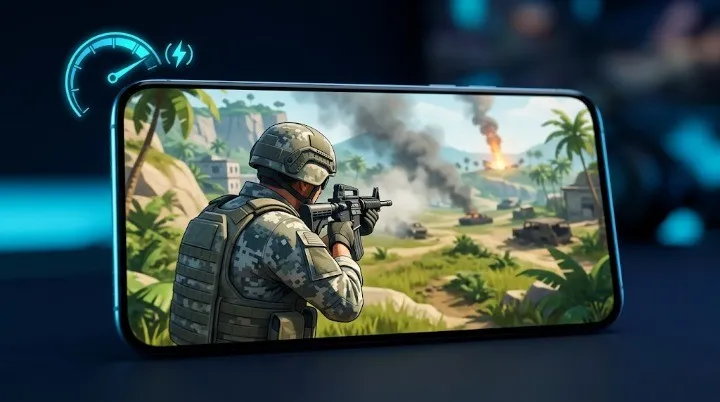
If your BGMI matches keep freezing at the worst possible moment — right when you’re pushing that last enemy — the problem usually isn’t your aim. It’s your graphics settings fighting your phone’s hardware. GFX Tool exists exactly for this: it lets you unlock resolution and frame rate combinations that BGMI’s default settings menu simply doesn’t expose, so you can tune the game to match what your device can actually handle.
Here’s a proper breakdown of what each setting does and which combination works best depending on your phone.
What GFX Tool Actually Does
BGMI’s in-game settings only give you a handful of preset options. GFX Tool goes deeper — it lets you independently control resolution, frame rate, style, and anti-aliasing, including some combinations that aren’t normally available together (like HD graphics with Extreme frame rate on supported devices). It doesn’t modify game files or give any unfair advantage — it simply changes how the game renders on your screen, which is why it’s safe to use and doesn’t violate BGMI’s fair-play policies.
That said, always download GFX Tool from the Google Play Store or the official BGMI-linked source. Sideloaded APKs from random websites are a common way people end up with malware or a banned account.
Understanding the Core Settings
Before jumping to device-specific recommendations, here’s what each setting actually controls:
Resolution — Smooth, Balanced, HD, HDR, Ultra HD. Lower resolution means the game renders fewer details per frame, which reduces load on your GPU and helps with lag.
Frame Rate — Low, Medium, High, Ultra, Extreme. This controls how many frames per second the game tries to render. Higher frame rate makes movement and gunfights feel smoother, but demands more from your processor.
Style — Classic, Colorful, Realistic, Soft. This is purely visual, affecting color saturation and lighting. It doesn’t meaningfully impact performance, so pick whichever looks best to you.
Anti-Aliasing — Smooths out jagged edges on objects. Turning this off can free up a small amount of performance on weaker devices.
The trick isn’t maxing everything out — it’s matching resolution and frame rate to what your specific chipset can sustain without overheating or dropping frames mid-fight.
Best Settings for Low-End Devices (2GB–3GB RAM)
If you’re on an entry-level device (think older Snapdragon 4xx series or similar), stability matters more than visuals here.
- Resolution: Smooth
- Frame Rate: Medium
- Style: Classic
- Anti-Aliasing: Disabled
- Shadows: Off (turn this off separately in BGMI’s own graphics menu)
This combination keeps the render load minimal so your phone isn’t struggling to keep up, which is usually the actual cause of stutter on budget devices — not a lack of “extreme” settings, but too much visual load for the chipset to sustain consistently.
Best Settings for Mid-Range Devices (4GB–6GB RAM)
This covers most mid-tier phones with a Snapdragon 6xx/7xx series or equivalent MediaTek chip — the largest chunk of BGMI’s player base.
- Resolution: Balanced or HD
- Frame Rate: High
- Style: Realistic or Colorful (personal preference)
- Anti-Aliasing: Enabled if frame rate stays stable, otherwise off
- Shadows: Low
Try HD + High first. If you notice occasional frame drops during intense fights (multiple grenades, smoke, several players in view), drop resolution to Balanced while keeping High frame rate — that trade-off usually feels smoother in actual combat than the reverse.
Best Settings for High-End Devices (8GB+ RAM, Flagship Chipsets)
If you’re running a recent flagship chipset, you can push further without much risk.
- Resolution: HDR or Ultra HD
- Frame Rate: Ultra or Extreme (if your device supports Extreme — not all do)
- Style: Realistic
- Anti-Aliasing: Enabled
- Shadows: High (if visuals matter more to you than a marginal competitive edge)
Competitive players often still prefer Ultra HD + Extreme with shadows turned down, since spotting enemies matters more than pretty lighting in a firefight.
A Few Things That Help More Than People Expect
Close background apps before matches. GFX Tool settings only control the game’s own rendering load — they can’t fix RAM being eaten up by five other apps running in the background.
Clear BGMI’s cache occasionally. Go to your phone’s Settings → Apps → BGMI → Storage → Clear Cache. Over time, cached data builds up and can contribute to stutter, independent of your graphics settings.
Don’t run two GFX-boosting apps together. Some players stack GFX Tool with other “game booster” apps, which can actually conflict and cause more instability, not less.
Test in Training Mode first. Before locking in new settings, jump into Training Mode and check how it feels — you’ll notice frame drops or stutter far more clearly there than by guessing from memory.
Frequently Asked Questions
Is GFX Tool safe to use in BGMI?
Yes, as long as you download it from the Google Play Store or an official source. GFX Tool only changes how the game renders on your screen — resolution, frame rate, and visual style — it doesn’t modify any game files or give you an unfair advantage. Avoid sideloaded APKs from random websites, since those are a common source of malware.
Does using GFX Tool get your account banned?
No, GFX Tool itself doesn’t violate BGMI’s fair-play policy because it only adjusts display settings, not gameplay mechanics. Bans happen with tools that alter gameplay (aimbots, wallhacks, speed hacks) — GFX Tool isn’t in that category. Just make sure you’re using a genuine version from a trusted source.
Why does my BGMI still lag even after using GFX Tool?
GFX Tool can only reduce the rendering load — it can’t fix issues caused by too many background apps running, a full storage drive, an overheating device, or outdated phone software. Try closing background apps, clearing BGMI’s cache, and testing in Training Mode before assuming your settings are wrong.
Which is more important for smooth gameplay — resolution or frame rate?
Frame rate generally matters more for smoothness during fights, since it affects how fluid movement and aiming feel. Resolution affects visual clarity but has a bigger performance cost. If you’re forced to choose, most players get better in-game feel by lowering resolution one step and keeping frame rate higher.
Can I use the same GFX Tool settings on any phone?
No — the right settings depend on your phone’s RAM and chipset. A setting that runs smoothly on a flagship device can cause heavy lag on a budget phone. Always match your settings to your device tier (as covered in the sections above) rather than copying someone else’s exact setup.
Final Verdict
There’s no single “best” setting that works for every phone — the right combination depends entirely on your chipset, RAM, and even how hot your phone tends to get during long sessions. Start with the recommendation matching your device tier above, play a few matches, and adjust one setting at a time (resolution first, then frame rate) until you find the sweet spot where the game feels consistently smooth rather than occasionally maxed-out but stuttery.
A stable 60fps at Balanced resolution will win you more fights than a shiny Ultra HD setup that drops frames the moment three players start shooting at once.