BRG Natural Radiance Shader pack: A Natural Visual Experience
Minecraft Bedrock Edition offers a familiar blocky world that players can customize with resource packs and visual enhancements. If you want to give your world a fresh appearance while keeping its original Minecraft identity, BRG Natural Radiance is a project worth exploring.
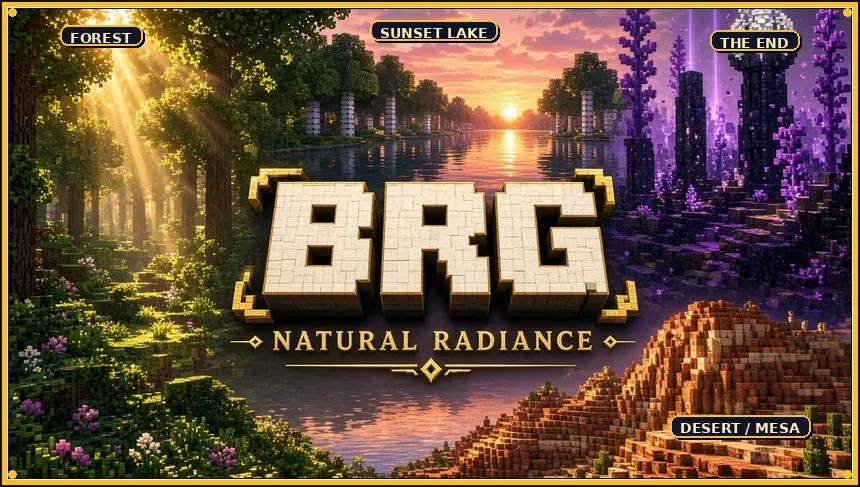
The idea behind a natural visual pack is simple: create a more immersive atmosphere for exploring, building, and capturing screenshots without making the game look completely different. A carefully balanced visual style can complement forests, rivers, mountains, villages, and survival bases while preserving the recognizable appearance of Minecraft.
In this guide, we will cover the concept of BRG Natural Radiance, what to check before installing it, how to activate a Bedrock resource pack, and how to troubleshoot common problems.
What Is BRG Natural Radiance?
BRG Natural Radiance is a Minecraft Bedrock visual-pack project from the BRG GAMERS collection. It is intended for players interested in customizing the appearance of their Minecraft worlds.
Visual packs and resource packs can change how Minecraft looks, depending on the files and rendering features they include. Some focus on textures, while others work with supported environmental settings to create a different atmosphere.
The exact features of BRG Natural Radiance should be checked against its current project description and published file. Before downloading, review the screenshots, supported Minecraft versions, installation requirements, and any notes supplied with the pack.
This helps you understand what the project actually changes instead of expecting effects that may not be included in your installed version.
Why Try a Natural Visual Pack?
A visual pack can make familiar locations feel different without requiring you to start a new world. Your existing survival base, creative builds, and exploration routes can become a useful way to evaluate the appearance of a pack.
1. Refresh Familiar Minecraft Landscapes
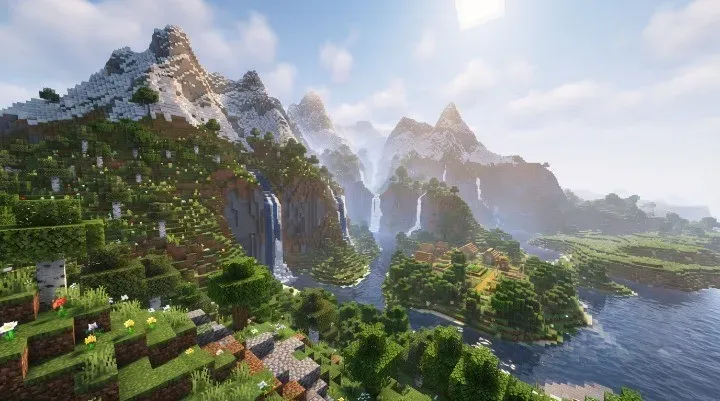
Forests, plains, mountains, rivers, and villages are among the most recognizable parts of Minecraft. A visual customization project can give you a reason to revisit these locations and see how they look with different visual settings.
For a fair comparison, visit the same locations before and after enabling the pack. Take screenshots from matching positions so you can evaluate the differences clearly.
2. Improve Building Screenshots
Players who create houses, castles, modern cities, or detailed survival bases often want screenshots that show their builds clearly. The right visual setup can complement a build’s materials, surrounding landscape, and overall design.
Try capturing screenshots during different times of day. Morning, midday, sunset, and nighttime can create very different moods, even when the build itself remains unchanged.
3. Create More Immersive Exploration Sessions
Exploration is a major part of Minecraft. Players travel through caves, cross rivers, climb mountains, and discover generated structures. A visual pack may offer a different presentation of these familiar activities, depending on its supported effects.
Keep visibility and readability in mind when choosing visual settings. A beautiful screenshot is useful, but players should still be able to navigate their world comfortably.
4. Give Gaming Content a Fresh Look
Minecraft creators often use screenshots for thumbnails, guides, build showcases, and social media posts. Testing a visual pack can help you find a consistent appearance for your content.
If you create content for BR GAMERS, use genuine screenshots captured in your own game. Avoid presenting edited promotional artwork as an unmodified in-game screenshot.
What Should You Check Before Downloading?
Before installing BRG Natural Radiance, review these important details on its official project page.
| Detail | What to check |
|---|---|
| Minecraft edition | Confirm that the file is intended for Bedrock Edition |
| Supported versions | Match the listed versions with your installed game |
| Pack format | Check whether the download is an .mcpack or another format |
| Visual requirements | Read any requirements for graphics settings or rendering features |
| Installation notes | Follow the instructions provided with the actual file |
| Screenshots | Compare the showcased appearance with your expectations |
Compatibility matters because a pack may import successfully but fail to display all its intended effects on an unsupported version. Always use the latest compatible release listed by the creator rather than assuming every Minecraft version behaves identically.
How to Download BRG Natural Radiance
Use the official project page to check the available release and its details.
- Open the BRG Natural Radiance project page.
- Review the description and gallery images.
- Check the available files and their supported Minecraft versions.
- Read any requirements or installation notes.
- Download the compatible public release if one is available.
Important: If the project page is still in preview or does not have a publicly downloadable file, you may need to wait until the creator publishes a release.
Download BRG Natural Radiance
Explore BRG Natural Radiance for Minecraft Bedrock Edition and refresh the look of your Minecraft world.
How to Install a Minecraft Bedrock Resource Pack
The following are general installation steps for a Bedrock resource pack distributed as an .mcpack file. If BRG Natural Radiance provides different instructions, follow those instead.
Step 1: Download the File
Download the compatible file from the project’s official page. Keep the original file intact unless the creator specifically instructs you to extract it.
Step 2: Import It into Minecraft
Open the downloaded .mcpack file with Minecraft Bedrock Edition. Minecraft should begin importing the pack.
Wait for the import process to finish before closing the game or opening another file.
Step 3: Activate the Pack
Open Minecraft and navigate to the resource-pack settings. You can usually activate a pack globally through the Global Resources menu or for an individual world through that world’s Resource Packs settings.
Choose the appropriate option based on how you want to use the pack.
Step 4: Check the Graphics Settings
If the project requires a particular graphics mode or supported rendering feature, check Minecraft’s video settings and follow the creator’s instructions.
Do not assume that every visual pack requires the same graphics mode. Requirements depend on how the individual project was built.
Step 5: Test Your World
Load a test world or a copy of your existing world first. Visit several different environments and compare the appearance with the pack disabled.
This is a useful way to check whether the pack works as expected without making unnecessary changes to your main survival world.
Performance and Compatibility Tips
The performance impact of a visual pack depends on its contents, your device, and the graphics features it uses. A lightweight resource pack may behave differently from one that relies on more demanding rendering features.
For a smoother experience, consider these tips:
- Use a Minecraft version listed as supported by the creator.
- Close unnecessary applications if your device struggles to run the game.
- Test the pack in a separate world before using it in a long-term survival world.
- Compare performance with the pack enabled and disabled.
- Check the project’s notes for known limitations.
- Keep a backup of important worlds before making substantial changes.
Remember that a pack’s performance cannot be guaranteed across every PC, mobile device, or console. Your results may vary depending on your hardware and Minecraft settings.
Common Problems and How to Fix Them
The Pack Does Not Appear in Minecraft
Confirm that the file downloaded completely and is in a format supported by Minecraft Bedrock. If you are using an .mcpack file, try opening it directly with Minecraft again.
If the import still fails, check whether the file is damaged or intended for a different edition.
The Pack Imports but Nothing Looks Different
First, confirm that the pack is activated in the correct resource-pack menu. If the project has specific requirements, verify that those settings are enabled and supported by your device.
Some packs affect only particular visual elements, so compare the areas mentioned in the project’s description rather than expecting every block or environment to change.
Minecraft Displays a Compatibility Warning
Check the supported game versions listed on the project’s page. If your Minecraft version is newer or older than the listed range, some features may not work correctly.
Wait for a compatible release if necessary rather than assuming the warning can safely be ignored.
The Game Runs More Slowly
Disable the pack temporarily and compare performance in the same location. If performance improves, review the pack’s requirements and lower other graphics settings where available.
Testing one change at a time makes it easier to identify what is affecting performance.
The Pack Conflicts with Another Resource Pack
Multiple resource packs can sometimes affect overlapping visual elements. Try activating BRG Natural Radiance by itself to see whether the issue disappears.
If it works alone, review the order of your active packs and consult the creators’ instructions before combining them.
Is BRG Natural Radiance Worth Trying?
BRG Natural Radiance may interest players who enjoy experimenting with Minecraft Bedrock visuals and want to explore another project from the BRG GAMERS collection.
Before deciding whether it suits your setup, check the current screenshots, feature list, compatibility information, and available release. These details are more useful than relying on the project name alone.
If you are planning to use it for screenshots or gameplay videos, test it in several environments and decide whether the results suit your preferred Minecraft style.
Frequently Asked Questions
1. What is BRG Natural Radiance?
BRG Natural Radiance is a Minecraft Bedrock visual-pack project associated with BRG GAMERS. Check the current project description for its confirmed features and requirements.
2. Is BRG Natural Radiance compatible with Minecraft Bedrock Edition?
Check the supported versions on the official project page before installing it. Compatibility may depend on the release and your Minecraft version.
3. How do I install BRG Natural Radiance?
If the project provides an .mcpack file, open it with Minecraft Bedrock Edition, wait for the import to finish, and activate it in the appropriate resource-pack settings.
4. Does BRG Natural Radiance require Vibrant Visuals?
Check the project’s current requirements. Do not assume that Vibrant Visuals or another graphics feature is required unless the creator specifies it.
5. Will BRG Natural Radiance work on mobile devices?
That depends on the pack’s requirements, your Minecraft version, and your device. Review the compatibility notes and test the pack before using it in your main world.
6. Can I use BRG Natural Radiance with other resource packs?
Possibly, but packs that modify the same elements may conflict. Test them individually first, then combine them while checking whether the intended effects remain visible.
7. Is BRG Natural Radiance a gameplay-changing addon?
A visual resource pack generally focuses on appearance rather than gameplay mechanics. Check the actual contents of this project to confirm exactly what it changes.
8. Where can I find BRG Natural Radiance?
Visit the official project page to view its description, gallery, compatibility information, and any publicly available releases.
Final Thoughts
BRG Natural Radiance is a project for Minecraft Bedrock players who want to explore visual customization within the familiar Minecraft world. Before installing it, confirm its published features, supported versions, and requirements so you know what to expect.
Use a test world, compare screenshots, and check performance on your own device. With the right compatibility checks, you can decide whether the pack fits your preferred way to play and showcase Minecraft.
For the latest project information, visit the official BRG Natural Radiance page and follow the instructions provided with its current release.