BRG AuroraVale Visuals for Minecraft Bedrock: A Cinematic Visual Pack
Minecraft Bedrock Edition gives players a huge world to explore, but changing the way that world looks can make familiar locations feel fresh again. From peaceful forests and mountain valleys to rivers, oceans, and village builds, the right visual style can transform the atmosphere of an ordinary Minecraft adventure.
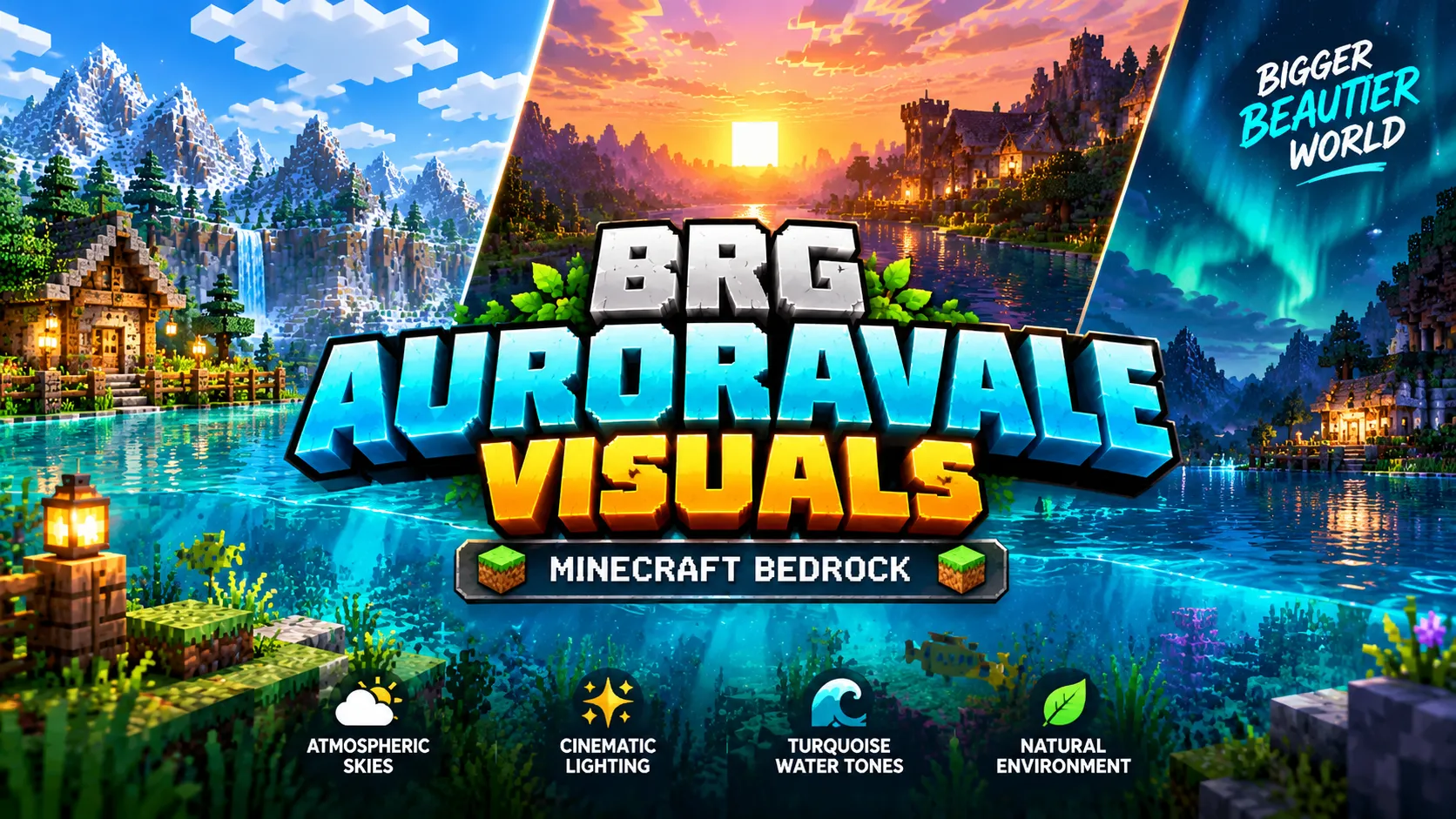
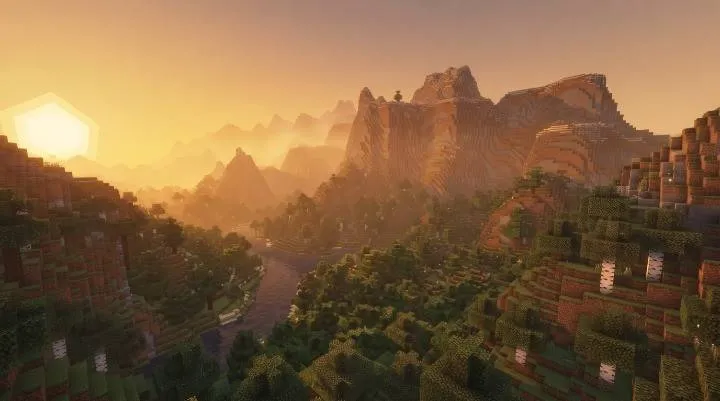
BRG AuroraVale Visuals is a Minecraft Bedrock visual resource pack designed around atmospheric skies, cinematic lighting, turquoise-inspired water colors, and natural environmental tones. Its visual direction combines cool blue hues with warm sunset colors to create a cohesive look for exploration, building, and screenshots.
Whether you enjoy creating beautiful survival bases, exploring new biomes, or capturing cinematic Minecraft scenes, AuroraVale Visuals offers a different way to experience your world.
In this guide, we will explore the pack’s main features, installation process, compatibility considerations, troubleshooting steps, and the types of Minecraft players who may enjoy it.
What Is BRG AuroraVale Visuals?
BRG AuroraVale Visuals is a visual resource pack created by BRG GAMERS for compatible Minecraft Bedrock environments. Its main focus is improving the atmosphere and presentation of the Minecraft world through its intended sky colors, lighting style, water tones, and environmental appearance.
Rather than changing the basic identity of Minecraft, the pack aims to complement its familiar block-based world with a more cinematic visual direction.
The pack is particularly suited to players who enjoy:
- Exploring forests, plains, mountains, and coastal landscapes.
- Building houses beside lakes, rivers, and oceans.
- Capturing Minecraft screenshots and gameplay clips.
- Experimenting with visual resource packs.
- Creating scenic survival bases and creative-mode builds.
The actual appearance depends on the supported Minecraft version, device, and rendering mode. Check the project’s current requirements before installing it.
Key Features of BRG AuroraVale Visuals
1. Atmospheric Sky Colors
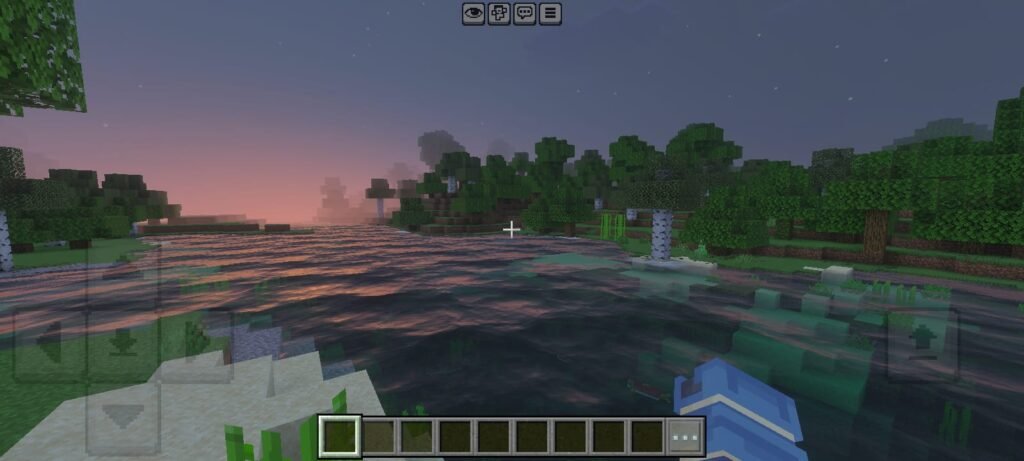
The sky plays an important role in how a Minecraft landscape looks. Mountains, forests, oceans, and buildings can all appear different depending on the surrounding colors and lighting conditions.
AuroraVale Visuals follows a sky aesthetic inspired by clear blue horizons, natural daylight, and warm golden-hour colors. The intended style complements green landscapes and open plains while giving sunrise and sunset scenes a different mood.
Warm peach, gold, and orange-inspired tones can work particularly well with lakeside houses, mountain builds, and coastal villages.
For the best way to evaluate the effect, visit the same location at different times of day and compare screenshots with the pack enabled and disabled.
2. Cinematic Lighting and Environmental Colors
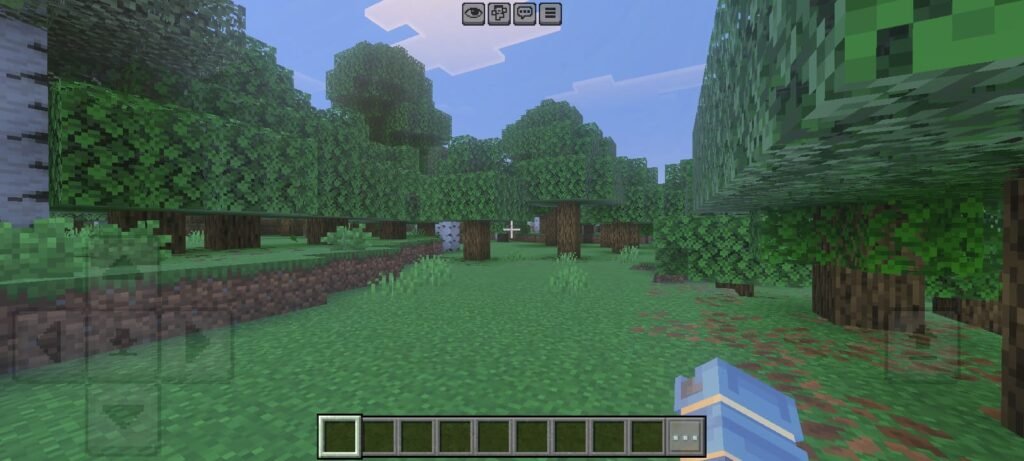
Lighting influences the appearance of nearly every Minecraft build. Wooden houses, stone walls, gardens, and forests can look quite different depending on the balance of warm and cool colors.
AuroraVale Visuals aims for a visual balance between warm sunlight-inspired tones and cooler environmental colors. This approach helps establish a consistent atmosphere across different locations.
The intended style works well with natural landscapes, medieval villages, modern homes, and creative builds that use wood, stone, and vegetation.
Advanced effects such as dynamic illumination, detailed shadow rendering, and ambient lighting depend on the rendering features actually supported by the pack and Minecraft version. Installing a resource pack alone does not guarantee every advanced graphics effect.
3. Turquoise-Inspired Water
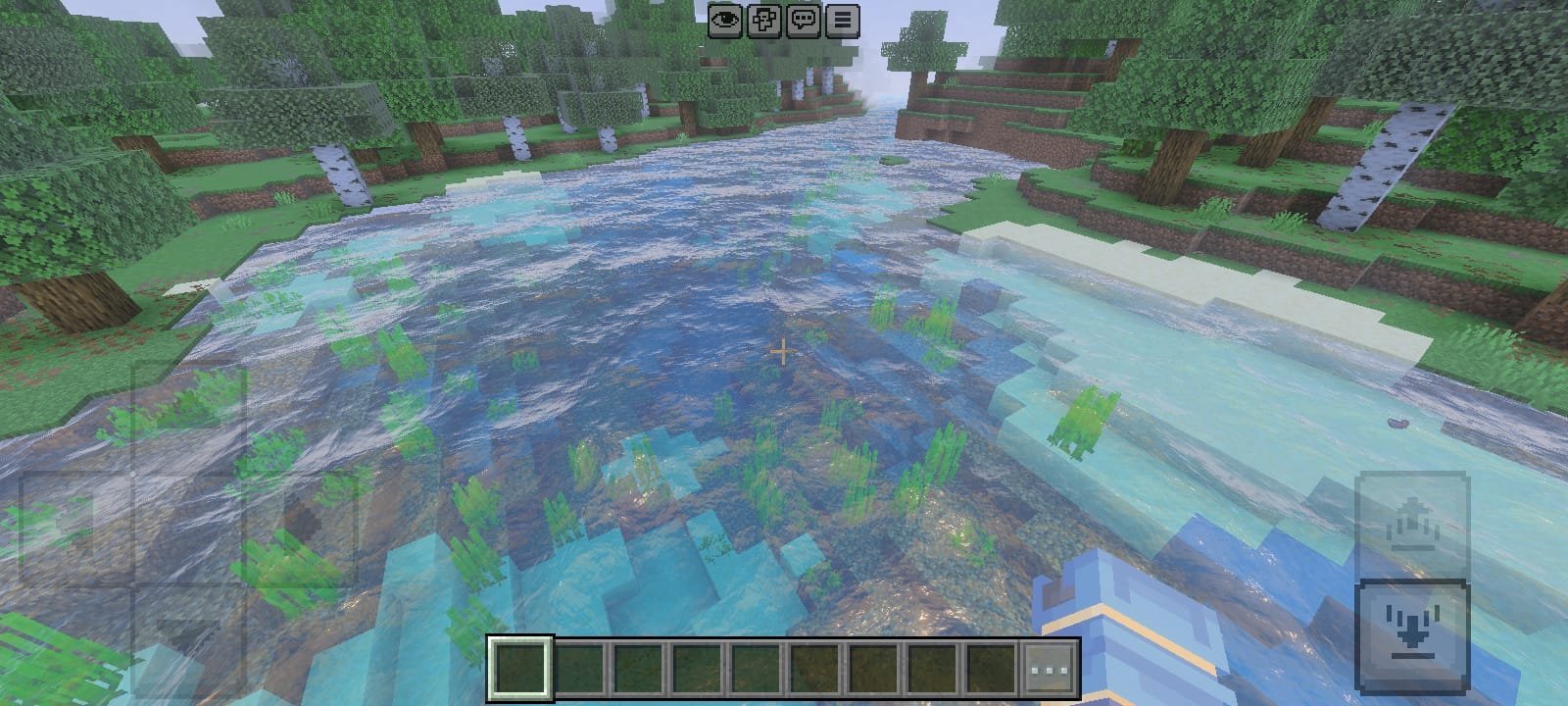
Water is one of the most noticeable parts of a Minecraft landscape. Rivers, lakes, oceans, and waterfalls often occupy large areas of the screen, making their color an important part of a world’s visual identity.
AuroraVale Visuals uses a water palette inspired by turquoise, aqua, and deeper blue tones. These colors are intended to complement bright skies, green vegetation, sandy beaches, and rocky coastlines.
This visual direction can suit several building styles:
- Lakeside survival houses.
- Coastal villages and harbours.
- Bridges crossing rivers.
- Mountain bases overlooking water.
- Creative builds designed for screenshots.
Water effects such as transparency, reflections, waves, and underwater light behaviour depend on the implementation and compatible rendering features. Do not assume that every effect is available on every device.
4. Environmental Atmosphere and Distance
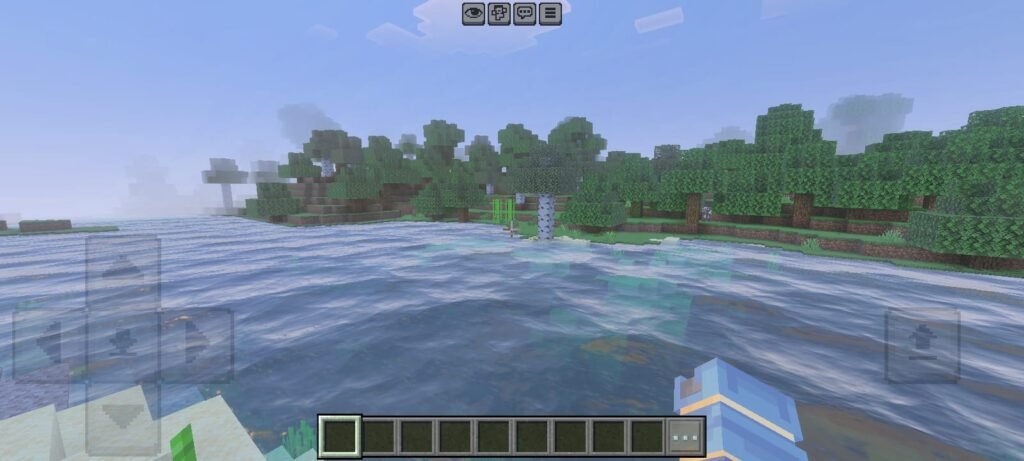
Atmosphere can help distant landscapes blend into the horizon, creating a stronger sense of depth. Forest edges, mountain ranges, valleys, and open plains all contribute to the overall feeling of a Minecraft world.
AuroraVale Visuals is designed around environmental colors that complement both open and densely wooded areas. Cool blue tones support its daytime aesthetic, while warmer colors contribute to the intended sunset atmosphere.
This approach can make scenic screenshots feel more cohesive without changing the basic layout of your world.
The exact appearance of fog and distance effects depends on the rendering system and the features included in the pack. Advanced volumetric fog and realistic light scattering should not be assumed unless they are specifically implemented and supported.
5. A Cooler Nighttime Mood
Nighttime provides a different atmosphere from daytime. The contrast between the sky, landscape, and illuminated areas can change the way a village or survival base feels.
AuroraVale Visuals follows a cooler, blue-inspired environmental style that complements forests, mountains, rivers, and lakes.
If you enjoy building cabins in wooded areas or creating peaceful bases beside the ocean, this visual direction may suit your preferred style.
The actual nighttime result depends on the game’s rendering mode and the pack’s implemented settings. Test it in your own world before deciding whether it matches your expectations.
How BRG AuroraVale Visuals Can Improve Your Minecraft Experience
For Builders
If you enjoy building houses, castles, gardens, bridges, or modern cities, a consistent visual style can complement the materials and surroundings of your creation.
Try testing the pack around different building materials. Wooden structures may work well with warm sunset colors, while stone builds can look striking against cool skies and mountain scenery.
For Survival Players
Exploration is an important part of survival mode. Players travel across forests, plains, rivers, mountains, and coastlines while searching for resources and suitable building locations.
AuroraVale Visuals is designed to complement these environments with its atmospheric color palette.
For a fair comparison, test the pack in a copy of your survival world before making it part of your regular setup.
For Screenshot Creators
Minecraft screenshots can be used in gaming articles, build showcases, social media posts, and video thumbnails.
AuroraVale Visuals provides a visual direction built around blue skies, warm sunsets, and turquoise-inspired water. These elements can serve as a useful starting point for scenic compositions.
For better screenshots, try the following:
- Capture the same location during sunrise and sunset.
- Include foreground blocks to create a sense of depth.
- Frame rivers, mountains, and buildings together.
- Experiment with different viewing angles.
- Keep the subject of the screenshot clearly visible.
Use genuine screenshots captured in Minecraft when presenting the pack’s actual appearance.
Minecraft Bedrock Compatibility
BRG AuroraVale Visuals is designed for compatible Minecraft Bedrock rendering environments. However, compatibility should always be checked against the version and requirements listed on the project’s page.
Some visual packs rely on particular rendering modes or graphics features. If your device or Minecraft version does not support those features, the pack may not display every intended effect.
Before installing, check:
- The Minecraft versions listed by the creator.
- The pack’s current file and installation instructions.
- Whether a particular graphics mode is required.
- Any known compatibility limitations.
- Whether your device supports the relevant rendering features.
An imported resource pack may appear in Minecraft without all its intended visual effects being active. If the appearance does not match the project screenshots, verify the activation settings and rendering requirements first.
How to Download BRG AuroraVale Visuals
You can find the project information, screenshots, and available releases on the official page.
Download BRG AuroraVale Visuals
Explore BRG AuroraVale Visuals for Minecraft Bedrock Edition and enjoy atmospheric skies, cinematic lighting, and turquoise-inspired water tones.
Before downloading, review the available file and confirm that it matches your Minecraft version.
If a public release is available, download the compatible file and follow the creator’s instructions. Avoid assuming that a particular file format or graphics requirement applies to every release.
How to Install BRG AuroraVale Visuals
The following steps apply to a standard Bedrock resource pack supplied as an .mcpack file. Follow the project’s own instructions if its current release uses a different installation method.
Step 1: Download the Resource Pack
Open the official project page and download the compatible release.
Check that the file has downloaded completely before attempting to import it.
Step 2: Import the File
If the file is an .mcpack, open it using Minecraft Bedrock Edition on a supported device.
Wait for the import process to finish. If the file does not open correctly, check your device’s file-association settings and the project’s installation instructions.
Step 3: Activate the Pack
Open Minecraft’s resource-pack settings.
You can generally enable a resource pack through Global Resources or through the resource-pack settings for an individual world. Choose the option that suits how you want to use it.
Step 4: Check the Graphics Requirements
Review the pack’s current compatibility notes. If a specific rendering mode is required and supported by your Minecraft version and device, follow the creator’s instructions.
Do not assume that every visual pack requires the same graphics settings.
Step 5: Test Your World
Open a test world and explore several environments, including forests, rivers, mountains, and open plains.
Compare the appearance with the pack disabled and enabled. This will help you identify the visual changes and determine whether the pack works as expected on your device.
Performance Tips for a Better Experience
The performance impact of a visual resource pack depends on its contents, device hardware, resolution, Minecraft version, and rendering features.
For a more reliable test:
- Close applications that are not needed while playing.
- Check that your device has sufficient free storage.
- Allow the phone or PC to cool if it becomes hot.
- Test the pack in a separate world before using it in a long-term survival save.
- Compare performance with the pack enabled and disabled.
- Check the project page for known limitations or updated releases.
Avoid assuming that the pack will provide a particular FPS increase or run identically on every device. Test it on your own setup to determine the actual result.
Troubleshooting Common Problems
The Pack Does Not Appear in Minecraft
Make sure the file downloaded successfully and that Minecraft recognized it as a resource pack. If necessary, try importing the file again using the method supported by your device.
The World Looks Unchanged
Check that AuroraVale Visuals is activated in the correct resource-pack menu. Then review its graphics requirements and make sure another active pack is not overriding the same visual elements.
Minecraft Shows a Compatibility Warning
Check the supported game versions listed by the creator. If your Minecraft version falls outside the supported range, wait for a compatible release or consult the project’s instructions.
The Game Runs More Slowly
Test the pack in a simple world and compare performance with it disabled. If performance improves without the pack, review its requirements and reduce other graphics-heavy settings where available.
Another Resource Pack Changes the Appearance
Two resource packs may affect overlapping visual elements. Try enabling AuroraVale Visuals by itself first. If it works correctly, review the order of your active packs and test combinations carefully.
Always keep a backup of important worlds before making substantial changes to your setup.
Frequently Asked Questions
1. What is BRG AuroraVale Visuals?
BRG AuroraVale Visuals is a Minecraft Bedrock visual resource pack focused on atmospheric skies, cinematic lighting, turquoise-inspired water colors, and environmental ambience.
2. Is BRG AuroraVale Visuals compatible with Minecraft Bedrock?
It is designed for compatible Bedrock rendering environments. Check the official project page for the supported versions and requirements of the current release.
3. How do I install BRG AuroraVale Visuals?
If the download is an .mcpack file, open it with Minecraft Bedrock Edition, wait for the import to complete, and activate it through the appropriate resource-pack settings.
4. Does AuroraVale Visuals require Vibrant Visuals?
Check the current project instructions for the required rendering mode. Do not assume that Vibrant Visuals or another graphics feature is mandatory unless the creator specifies it.
5. Will AuroraVale Visuals work on mobile devices?
Compatibility depends on the pack’s requirements, your Minecraft version, and your device’s supported graphics features. Review the requirements and test the pack before using it in your main world.
6. Can I use AuroraVale Visuals with other resource packs?
You can test it alongside other packs, but overlapping visual changes may conflict. Try the pack by itself first, then enable additional packs one at a time.
7. Does AuroraVale Visuals change Minecraft gameplay?
It is presented as a visual resource pack, so its focus is the appearance and atmosphere of the world rather than new gameplay mechanics. Check the actual contents of the release for confirmation.
8. Where can I download BRG AuroraVale Visuals?
Visit the official project page to view its description, screenshots, compatibility information, and available releases.
Final Verdict
BRG AuroraVale Visuals is designed for Minecraft Bedrock players who want a visual style inspired by atmospheric skies, cinematic environmental colors, turquoise water, and warm sunset tones.
Its intended look can complement scenic survival bases, creative builds, exploration, and Minecraft screenshots. Before installing it, check the current release details and make sure your device supports the required rendering features.