Looking for a balanced BGMI sensitivity setup? This guide explains Camera, ADS, Gyroscope and control settings in simple terms, along with practical starting values you can tune for your own device.
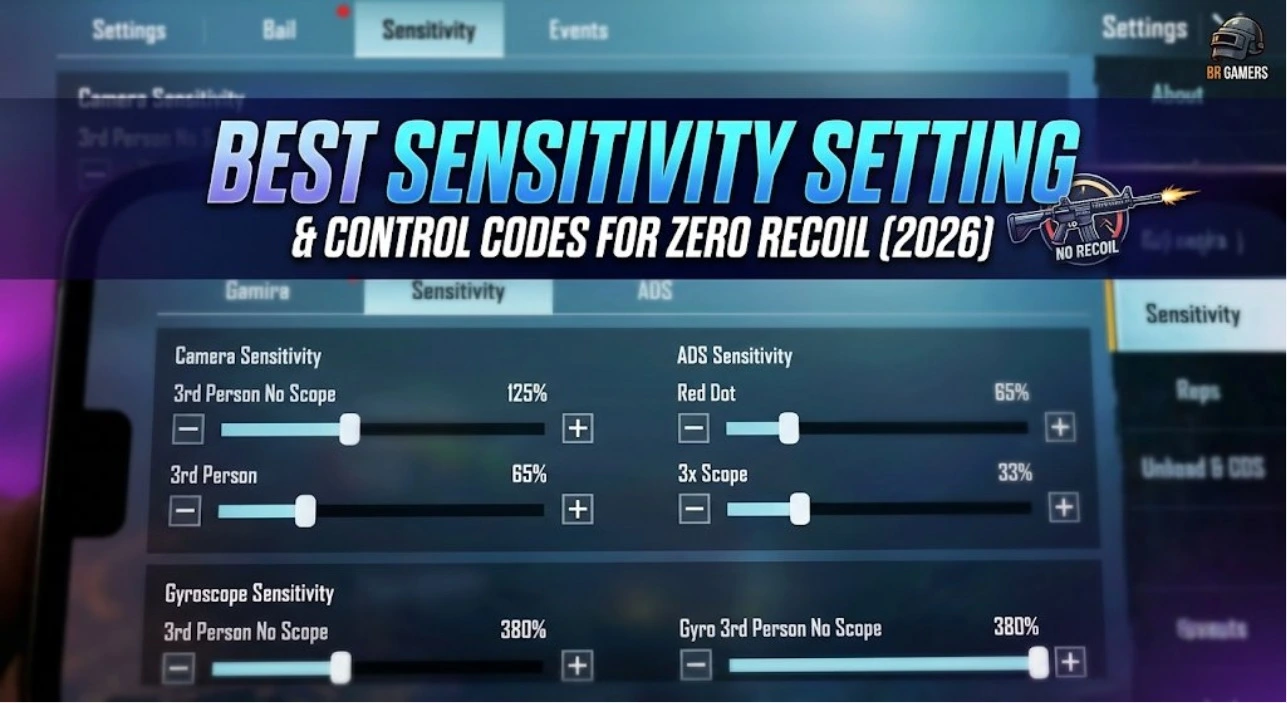
BGMI Sensitivity Settings at a Glance
If you want a balanced starting point, use the following values as a baseline rather than treating them as permanent settings. Start with them in Training Ground and make small changes until the controls feel natural.
| Camera Setting | Starting Value |
|---|---|
| TPP No Scope | 140% |
| FPP No Scope | 120% |
| Red Dot / Holographic | 70% |
| 2x Scope | 55% |
| 3x Scope | 32% |
| 4x Scope | 26% |
| 6x Scope | 21% |
| 8x Scope | 12% |
These are practical starting values, not official BGMI recommendations. Published 2026 guides use different ranges, so tune them for your device.
Recommended ADS Sensitivity Starting Point
ADS Sensitivity is separate from Camera Sensitivity. It affects camera movement while you are firing and making touch adjustments. If normal camera movement already feels comfortable but your aim feels different while firing, ADS is one of the settings worth tuning.
| ADS Setting | Starting Value |
|---|---|
| TPP No Scope | 120% |
| FPP No Scope | 110% |
| Red Dot / Holographic | 65% |
| 2x Scope | 50% |
| 3x Scope | 30% |
| 4x Scope | 25% |
| 6x Scope | 20% |
| 8x Scope | 12% |
What Does Camera Sensitivity Do?
Camera Sensitivity controls how quickly your view moves when you swipe the screen without actively firing. Higher sensitivity makes camera movement faster, while lower sensitivity gives you more controlled movement.
For close-range movement and quick camera turns, many players prefer a higher value. Higher magnification scopes generally feel easier to control with lower sensitivity.
What Does ADS Sensitivity Do?
ADS stands for Aim Down Sight. In BGMI, ADS Sensitivity is a separate control from normal Camera Sensitivity and is used when making touch adjustments while firing.
A common mistake is changing every sensitivity value at once. Instead, change one scope at a time and test the difference. This makes it much easier to understand what actually improved your control.
BGMI Gyroscope Sensitivity Settings
Gyroscope uses your phone's physical movement to adjust your aim. It can provide another layer of control, but the best value depends heavily on how comfortably you can move and hold your device.
| Gyroscope Setting | Starting Value |
|---|---|
| TPP No Scope | 300% |
| FPP No Scope | 300% |
| Red Dot / Holographic | 300% |
| 2x Scope | 280% |
| 3x Scope | 240% |
| 4x Scope | 200% |
| 6x Scope | 130% |
| 8x Scope | 80% |
If these values feel too fast, lower them gradually instead of changing the complete setup. Small adjustments are easier to learn.
Always On vs Scope On Gyroscope
Always On
Gyroscope remains active during gameplay. This can provide continuous movement control, but new gyro users may need time to become comfortable with it.
Scope On
Gyroscope becomes active when using a scope. It can be easier for beginners who want to learn gyro gradually without changing their normal camera movement.
Adjust Sensitivity According to Your Device
Do not copy a setting from another player and assume it will feel exactly the same. Two phones can have different screen sizes, refresh rates, touch response and frame-rate behaviour.
| Device Type | What to Focus On |
|---|---|
| Budget / lower FPS | Stable, controlled sensitivity |
| Mid-range / 60–90 FPS | Balanced camera and ADS response |
| High-refresh-rate device | Fine-tune faster camera response |
BGMI Control Layout Guide
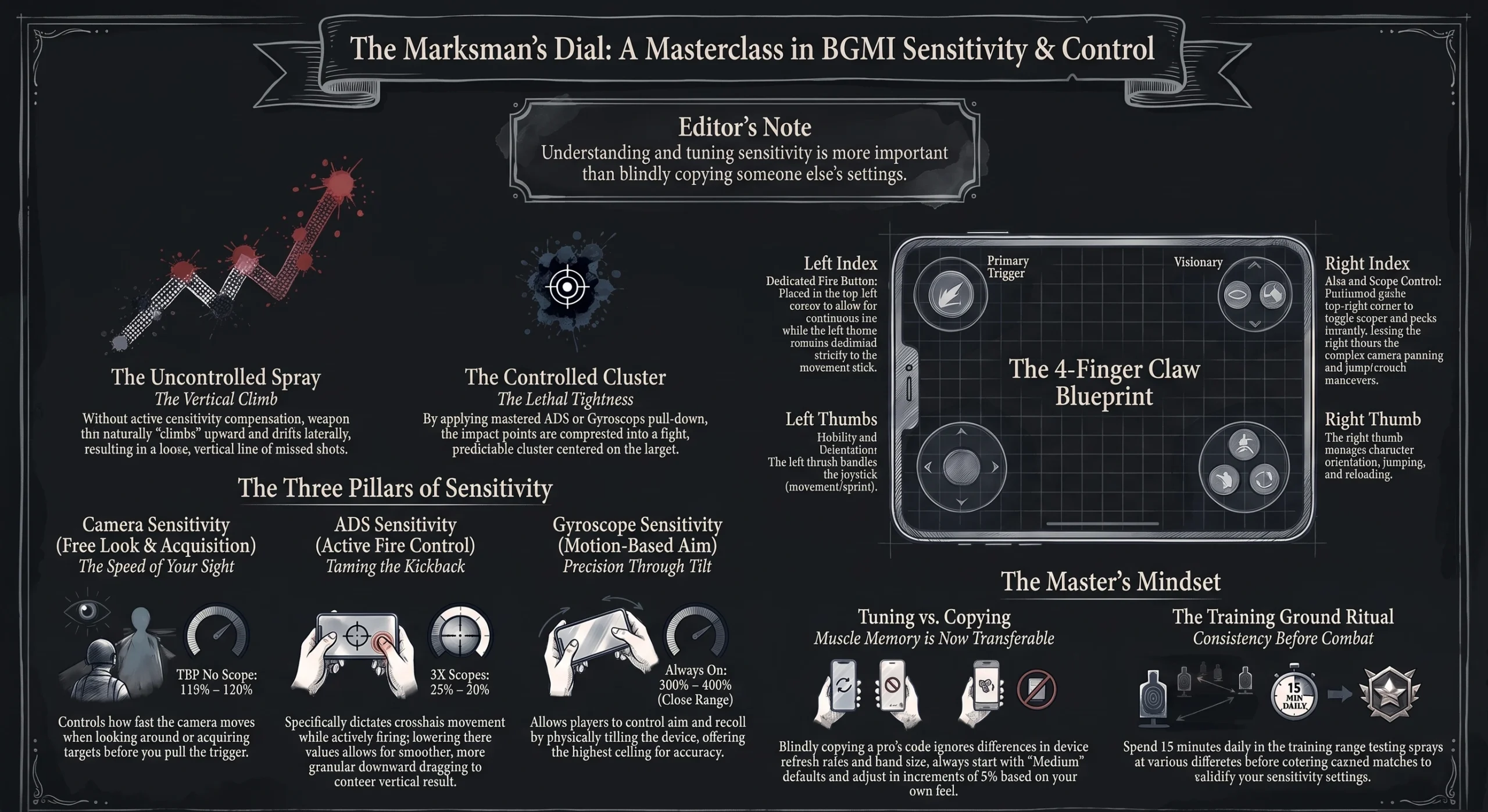
Sensitivity is only one part of a comfortable setup. Your HUD layout also matters because buttons that are difficult to reach can make otherwise good settings feel uncomfortable.
2-Finger Layout
A 2-finger setup is simple and easy to learn. Keep the most-used controls close to the natural position of your thumbs and avoid placing important buttons too close together.
3-Finger Layout
A 3-finger layout gives you another finger for faster access to an important control. It may take some practice, but it can make the transition from a basic setup easier.
4-Finger Layout
A 4-finger setup gives more control over simultaneous actions. The best arrangement depends on hand size and which buttons you naturally reach without stretching your fingers.
How to Place Your Controls
- Keep frequently used controls within comfortable reach.
- Avoid overlapping buttons that can cause accidental taps.
- Leave enough space around important controls.
- Keep your movement controls consistent between matches.
- Make changes one section at a time instead of rebuilding the whole HUD.
- Practice the layout before using it in a serious match.
How to Find Your Perfect BGMI Sensitivity
The quickest way to find comfortable sensitivity is controlled testing. Do not change every value after one bad match.
- Start with the baseline values in this guide.
- Open Training Ground.
- Test normal camera movement first.
- Test low-magnification scopes.
- Test higher-magnification scopes separately.
- If using gyro, test small phone movements.
- Change only one value at a time.
- Play several matches before deciding whether the change helped.
Common Sensitivity Mistakes to Avoid
Changing everything together
You won't know which setting actually improved or damaged your control.
Copying a random code
A setting made for another phone may feel completely different on your device.
Using extremely high values
Faster does not automatically mean better. Overshooting your target can make control harder.
Never testing after changing settings
Always test changes before deciding whether they are actually comfortable.
BGMI Sensitivity FAQ
Is there one perfect BGMI sensitivity for everyone?
No. Sensitivity depends on your device, FPS, touch response, screen size, grip and personal preference.
Should I use gyroscope in BGMI?
Gyroscope is optional. If you are comfortable with physical device movement, it can provide another way to make fine aim adjustments. Beginners can start gradually.
Should I copy a professional player's sensitivity?
You can use it as a starting reference, but it should not be treated as a guaranteed perfect setup for your own device.
Why does the same sensitivity feel different on another phone?
Screen size, refresh rate, touch response, frame rate and gyroscope behaviour can all change how the same setting feels.
How often should I change my sensitivity?
Avoid changing it constantly. Make a small adjustment, practice with it and give yourself enough time to understand the difference.
Final Thoughts
The best BGMI sensitivity is not necessarily the highest or lowest setting. It is the setup that lets you move your camera naturally, make small adjustments comfortably and maintain consistent control.
Use the values in this guide as your starting point, then make small changes according to your device and playstyle. A good HUD layout combined with consistent practice will usually be more useful than constantly switching between random settings.
Last updated: August 2026