If Minecraft Bedrock Edition feels laggy, stutters during gameplay, or simply does not deliver the FPS you expect, changing a few graphics settings can make a noticeable difference. You do not always need a powerful PC to get smoother Minecraft gameplay.
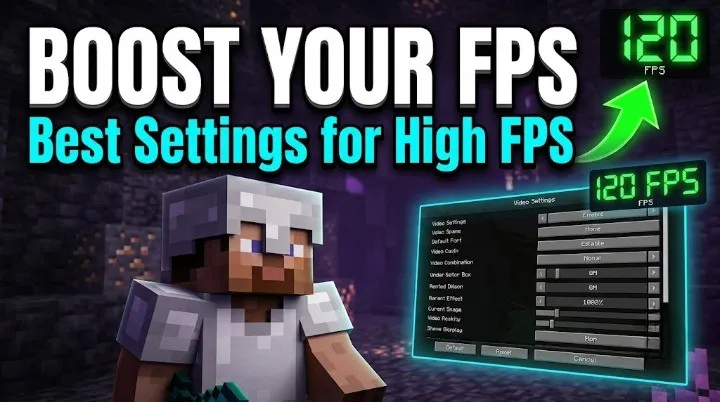
In this guide, we’ll go through the best Minecraft Bedrock FPS settings for smoother gameplay, lower stuttering, and better performance. These settings are useful for both low-end and mid-range PCs, while higher-end systems can use them as a starting point for maximizing FPS.
Best Minecraft Bedrock FPS Settings
Here are the settings to start with if your main priority is FPS and smooth gameplay:
Quick tip: If you want the biggest FPS improvement, start by lowering Render Distance, Simulation Distance, particles, lighting effects, and visual effects before changing your resolution.
1. Lower Your Render Distance
Render Distance is one of the most important settings for Minecraft Bedrock performance.
A higher render distance allows you to see more chunks around your player, but it also requires the game to render more terrain, blocks, entities, and other objects.
For most players looking for better FPS:
If your FPS drops when exploring large areas, lowering render distance can help considerably.
For competitive gameplay, you generally do not need an extremely high render distance. Keeping it around 8–12 chunks provides a good balance between visibility and performance.
2. Reduce Simulation Distance
Render Distance and Simulation Distance do different jobs.
Simulation Distance determines how far away parts of your Minecraft world continue to actively simulate things such as mobs, crops, and other game processes.
If your FPS or overall performance is struggling, try:
Lowering this setting can be especially useful on systems with limited CPU performance.
You can increase it again if your system has enough performance headroom.
3. Turn Off Fancy Graphics
Fancy graphics add additional visual effects that can increase the amount of work your system has to perform.
If your priority is FPS, use the more performance-focused graphics option available in your Bedrock version.
This can make Minecraft look simpler, but the improvement in consistency can be more important than visual detail when you’re trying to eliminate stutters.
4. Disable Beautiful Skies
Beautiful Skies can add additional sky and lighting effects.
For a maximum-FPS setup:
It is a relatively easy setting to disable because it does not affect the actual gameplay mechanics.
5. Turn Off Fancy Leaves
Fancy leaves make foliage look more detailed and transparent.
While the difference can look nice, forests can contain huge numbers of leaves, meaning these effects can become more noticeable in areas with dense vegetation.
Try:
This is particularly useful if you notice FPS drops while travelling through forests or areas with lots of vegetation.
6. Disable Clouds
Clouds are another visual effect you can remove when optimizing Minecraft.
Set:
You will lose the decorative clouds in the sky, but your game will have fewer unnecessary visual effects to process.
For an FPS-focused setup, there is little reason to keep them enabled.
7. Reduce Particles
Particles are used for effects such as:
- Breaking blocks
- Potion effects
- Explosions
- Enchantments
- Fire
- Various mob effects
Large farms, combat situations, explosions, and busy multiplayer areas can produce many particles simultaneously.
If Minecraft is struggling during these situations, use:
This is particularly useful for players who want smoother combat and gameplay.
8. Disable Smooth Lighting
Smooth lighting makes Minecraft’s blocks and environments appear softer and more visually polished.
However, if you are optimizing for maximum FPS, reducing or disabling additional lighting effects can help lower the graphical workload.
Try:
If your system still has plenty of performance, you can turn it back on and compare the difference.
9. Keep VSync Off for Maximum FPS
VSync synchronizes the game’s frame output with your monitor’s refresh rate.
This can help prevent visual tearing, but it can also limit your FPS to the display’s refresh rate.
If your goal is simply to get the highest possible FPS:
However, if turning it off causes noticeable screen tearing, you may prefer to keep it enabled.
This is one setting where the best choice depends on what you personally notice while playing.
10. Turn Off Ray Tracing
If you are using a system that supports Minecraft’s ray-tracing features, ray tracing can have a substantial performance impact compared with a standard rendering setup.
For maximum FPS:
Ray tracing is designed for visual quality rather than competitive performance, so it is generally not the first choice when you’re trying to maximize frame rate.
11. Be Careful With Vibrant Visuals
Minecraft Bedrock’s newer visual features can significantly change the appearance of the game.
They can provide improved lighting, atmosphere, shadows, and other visual effects, but the performance impact depends on your hardware and the particular settings being used.
If you’re trying to achieve maximum FPS, test the game with the visual effects disabled and compare your frame rate.
If your PC has plenty of GPU performance, you can experiment with enabling them again.
Best Settings for Low-End PCs
If you are playing Minecraft Bedrock on an older or entry-level PC, start with this setup:
This configuration prioritizes stable gameplay over visual quality.
Best Settings for Mid-Range PCs
A mid-range gaming PC can usually afford to keep some visual settings enabled without sacrificing too much performance.
Try:
You can increase Render Distance gradually until you find the point where your FPS starts dropping.
Best Minecraft Bedrock Settings for Competitive PvP
If you mainly play PvP, Survival Games, BedWars-style servers, or other competitive modes, visual quality is usually less important than consistent frame delivery.
For a competitive setup:
Render Distance: 8–10 chunks
Simulation Distance: 4–6 chunks
Particles: Minimal
Clouds: Off
Fancy Leaves: Off
VSync: Off
Ray Tracing: Off
Extra visual effects: Off where possible
The goal is not simply a high FPS number. Stable FPS and reduced frame-time spikes can make gameplay feel much smoother.
Why Minecraft Bedrock Can Lag Even With Good FPS
Sometimes the problem isn’t your average FPS.
You might see something like:
Even though the average FPS looks reasonable, those sudden drops can make the game feel choppy.
This is why you should also pay attention to:
- Frame-time spikes
- Chunk loading
- World complexity
- Simulation distance
- Background applications
- Resource packs
- Shaders and visual effects
- Large farms
- Multiplayer servers
A stable 90 FPS can feel better than an unstable 150 FPS that constantly drops.
Resource Packs Can Affect FPS
Your Minecraft resource pack can also affect performance.
High-resolution packs, animated textures, custom particles, and other visual changes may increase the workload on your GPU or memory.
If you’re troubleshooting FPS problems, temporarily switch to the default Minecraft textures.
If your FPS improves significantly, the resource pack may be contributing to the problem.
Quick Minecraft Bedrock FPS Boost Checklist
Before changing dozens of settings, try these first:
For maximum FPS:
1. Lower Render Distance
2. Lower Simulation Distance
3. Disable Fancy Graphics
4. Disable Clouds
5. Disable Fancy Leaves
6. Reduce Particles
7. Disable unnecessary lighting effects
8. Turn VSync off
9. Disable Ray Tracing
10. Test without heavy resource packs
These changes usually provide a much more noticeable difference than randomly lowering every setting.